Adding Anomali Copilot Trending Widgets to Custom Dashboards
Anomali Copilot users have access to custom dashboard widgets that surface information from Anomali Copilot on trending threat intelligence. The widgets display trend data for actors, malware, vulnerabilities, and MITRE attack patterns. Copilot determines what entities are trending based on the number of times they have appeared in recent security news feeds and blogs. Available widgets display data from the last 7, 30, 60, 90 days.
Each widget displays the top 10 trending entities based on its parameters. Widgets include entity names, the number of mentions for the specified time period, and a sparkline chart of the mentions over time. The following is an example of a Copilot Trending widget:
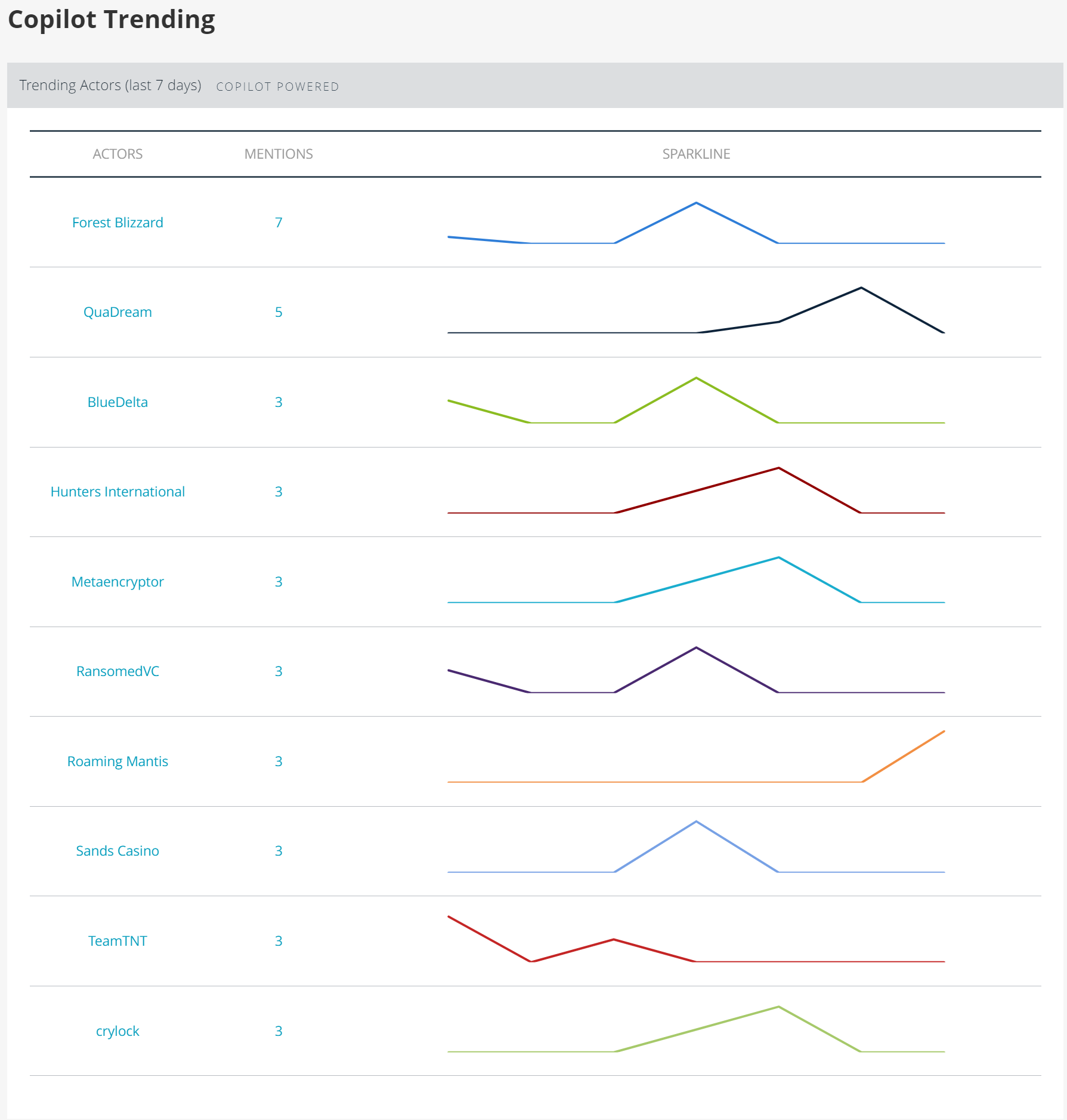
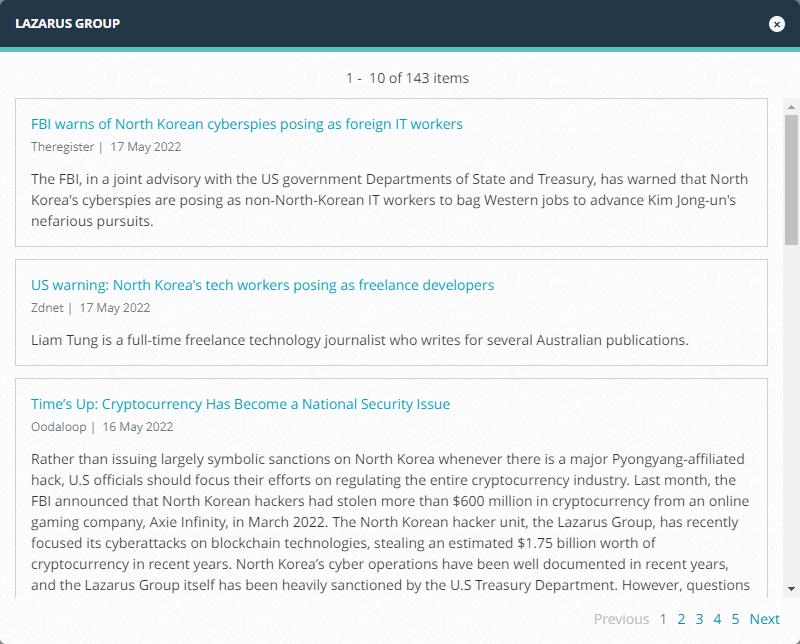
You can hover over the sparkline chart to view mentions per day. You can also click the name of a trending entity (an actor, malware, vulnerability, or MITRE attack pattern) to see more details, or click on the number in the Mentions column to see a summary list of recent news articles that reference the entity. The following is an example summary of recent news mentioning an actor in the above widget:
To add a Copilot Trending widget to your custom dashboard:
-
On your custom dashboard, click + Add a widget or Add Widget under the Actions menu.
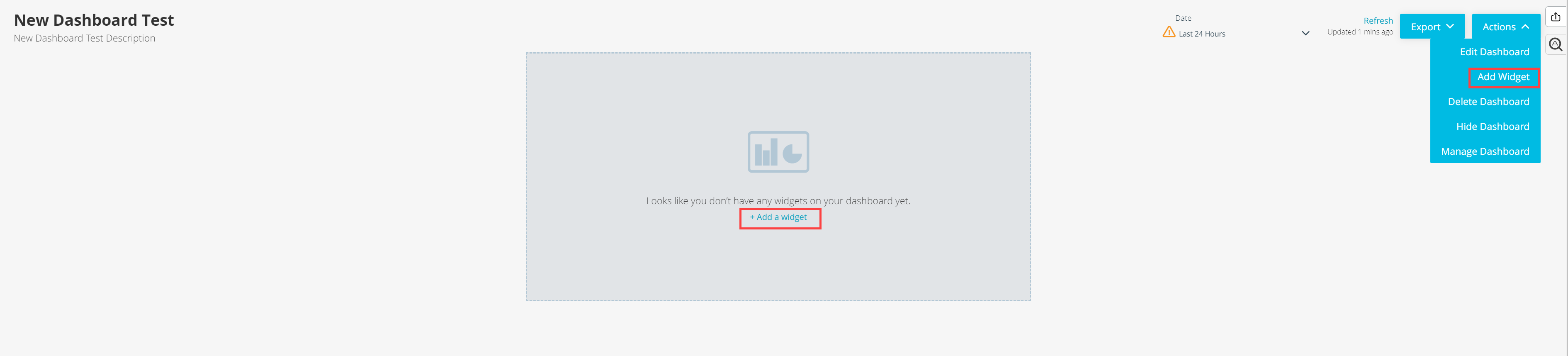 Note: You can only add widgets to custom dashboards which you created. Each dashboard can contain up to 10 widgets.
 -
Navigate to Standard > Trends on the Add a Dashboard Widget window.
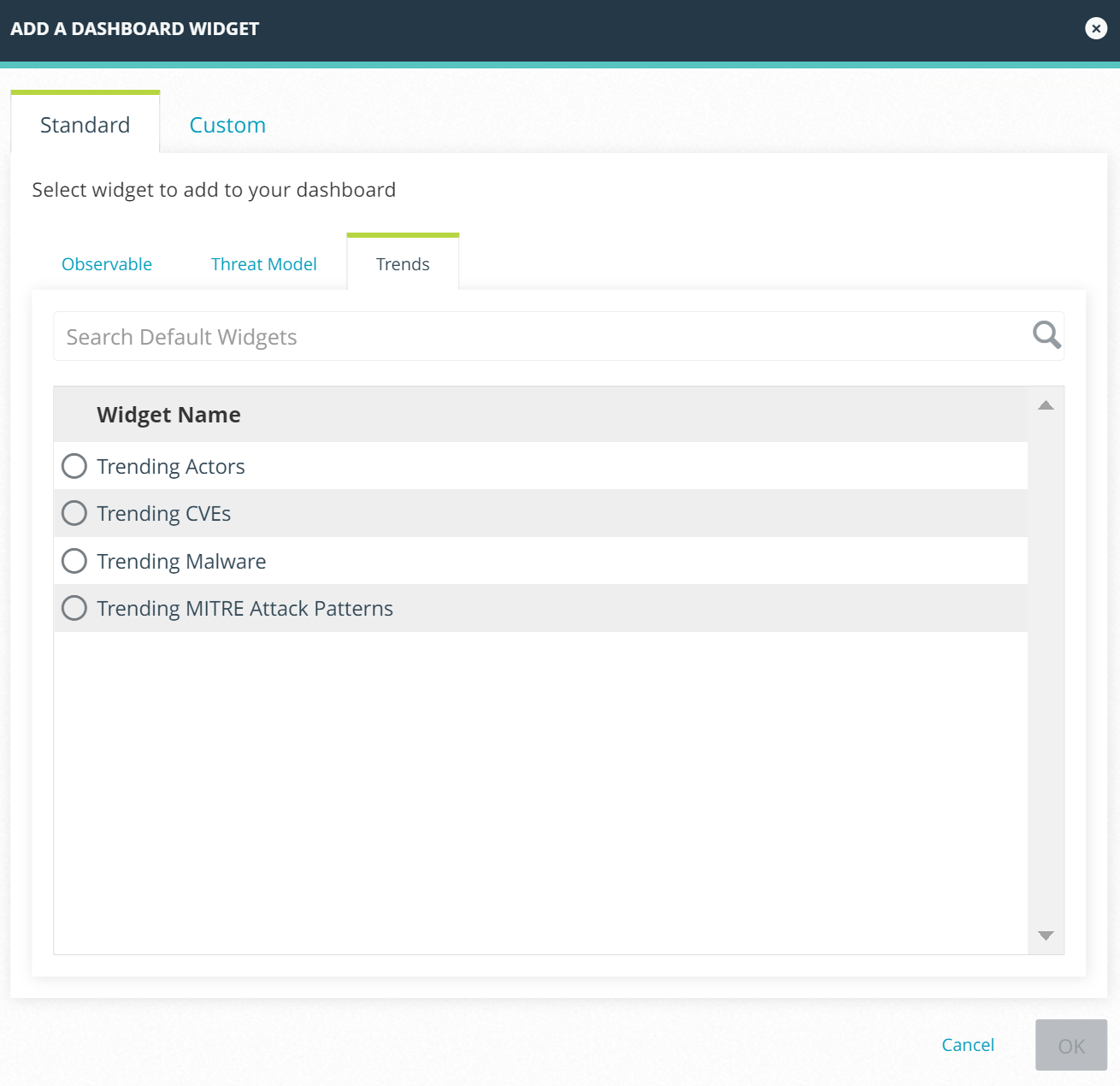
-
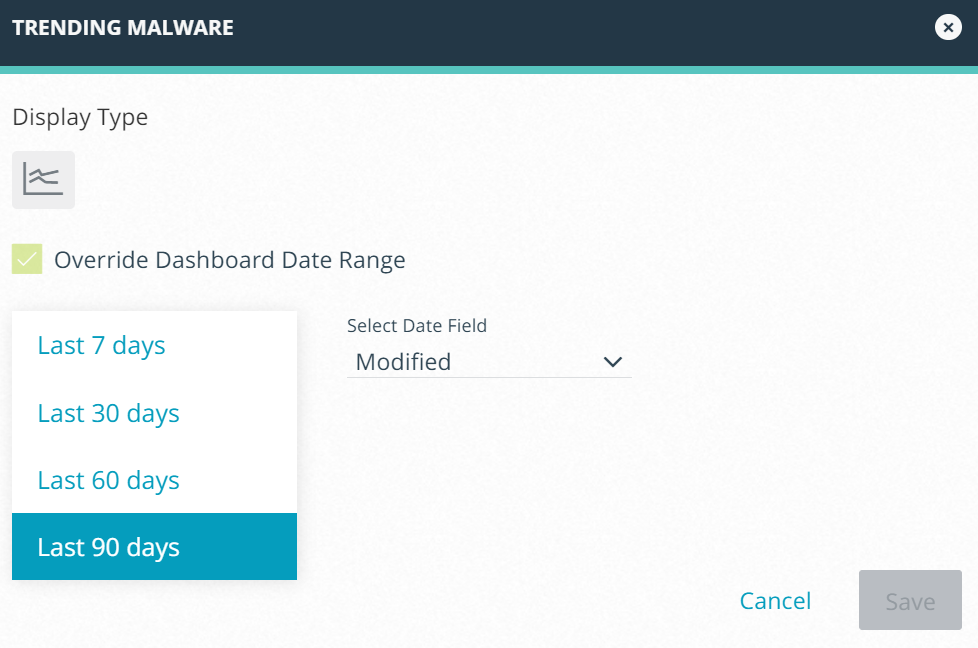
Select the widgets of interest. Select the display type, period of time, and date field for the data to be displayed. By default, the widget date range is set to override the dashboard date range. Deselect Override Dashboard Date Range if you do not want to override the dashboard date range.
Note: Custom date range is not supported for Trending widgets. -
Click OK.
The Copilot Trending widgets are added to your custom dashboard.
Below is an example of the Trending Malware widget.