Adding Labels to Associations
To help you track the contextual information behind the Threat Model entity and observable associations you create, ThreatStream enables you to add labels when you create associations. Association labels are displayed on the details pages of both associated entities, along with a timestamp of when the association was originally created (Associated Creation Date).
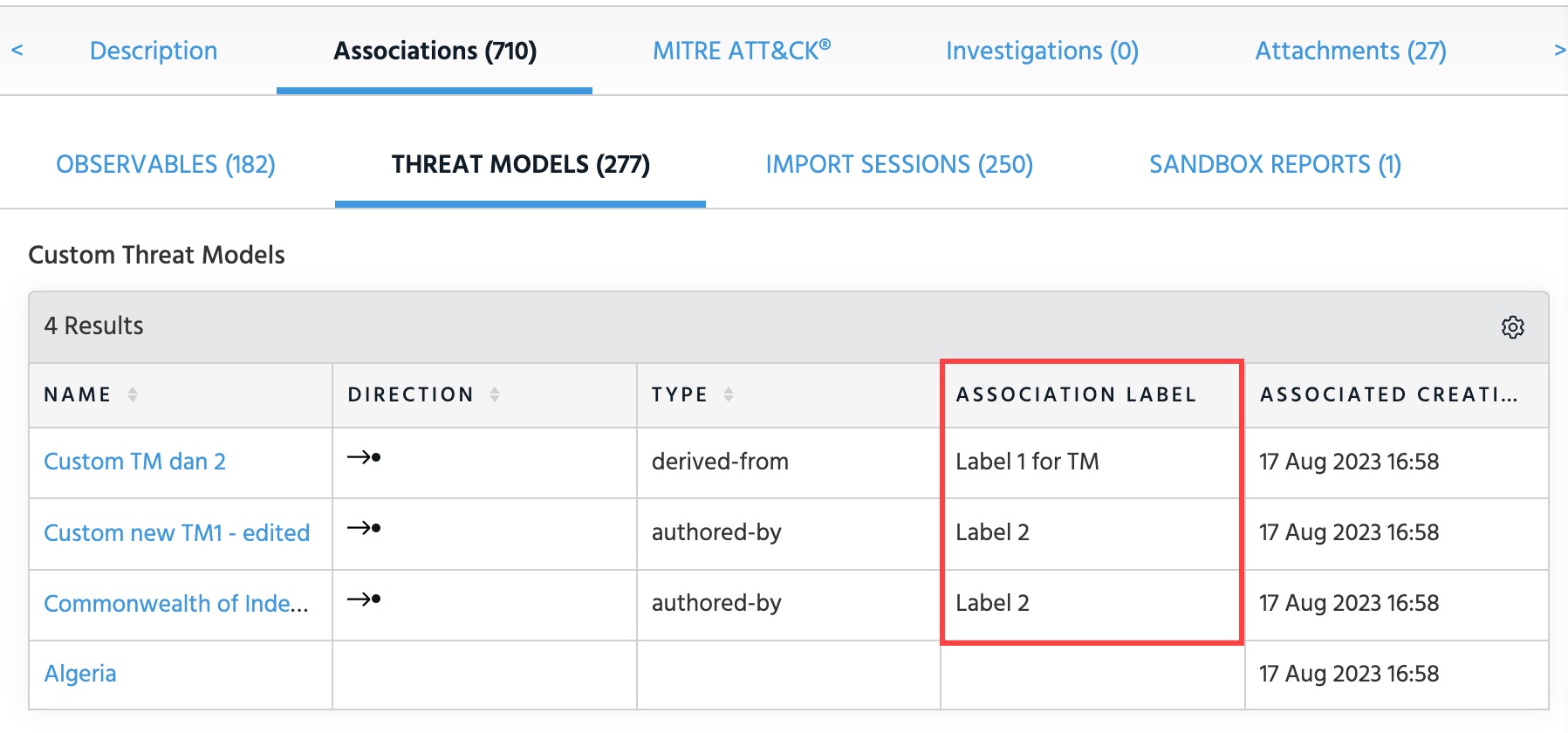
These labels are always private to your organization, even in cases where associated entities are visible to users outside of your organization. Users outside of your organization can never view the association labels you create.
You can add labels to the following types of associations:
- Observable <-> Observable
- Threat Model <-> Threat Model
- Threat Model <-> Observable
Labels are not supported for associations between Threat Model entities or observables and Import Sessions, Investigations, or Sandbox Reports.
Note: When you export observables associated with a Threat Model entity, association labels are not included. Additionally, association labels are not carried over when you clone Threat Model entities.
To add association labels to new associations:
-
Navigate to the details page of the Threat Model entity or observable of interest.
Note: Associations between Threat Model entities and observables cannot be created from observable details pages. Therefore, if you want to create an association between a Threat Model entity and an observable, navigate to the details page of the Threat Model entity.
-
If creating an association from a Threat Model entity details page, click Edit in the Actions menu and then open the Associations tab. If you are adding an observable association, open the observables tab and click Add Association in the Actions menu. If adding a Threat Model entity association, open the Threat Models tab and click Add next to the Threat Model entity type of interest.
OR
If creating an association from an observable details page, navigate to the observables tab in the Associations section of the page. Then click Add Association in the Actions menu.
- Select the Threat Model entities or observables with which you want to create the association.
-
On the Details tab, enter the desired association label under Label.
Note: Labels can be no more than 255 characters. Spaces and special characters are supported.
-
Click Create Association to create the association.
The association has been created and labeled with the association label you specified.
Note: If adding a label to an observable which contains multiple instances, the label is added to all instances of the observable.
To add labels to existing associations:
-
Navigate to the details page of the Threat Model entity or observable of interest.
Note: Associations between Threat Model entities and observables cannot be created from observable details pages. Therefore, if you want to add a label to an association between a Threat Model entity and an observable, navigate to the details page of the Threat Model entity.
-
If adding a label from a Threat Model entity details page, click Edit in the Actions menu and then open the Associations tab. Select the associations of interest from the observables or Threat Models tab and click Edit Association in the Actions menu.
OR
If adding a label from an observable details page, navigate to the observables tab in the Associations section of the page. Then click Edit Association in the Actions menu.
-
Enter the desired association label on the resulting window.
- Click Update Association.
The label has been added to the association.
To edit association labels:
-
Navigate to the details page of the Threat Model entity or observable of interest.
Note: Associations between Threat Model entities and observables cannot be created from observable details pages. Therefore, if you want to edit a label to an association between a Threat Model entity and an observable, navigate to the details page of the Threat Model entity.
-
If editing a label from a Threat Model entity details page, click Edit in the Actions menu and then open the Associations tab. Select the associations of interest from the observables or Threat Models tab and click Edit Association in the Actions menu.
OR
If editing a label from an observable details page, navigate to the observables tab in the Associations section of the page. Then click Edit Association in the Actions menu.
-
Modify the association label as desired.
- Click Update Association.
The association label has been updated.
To delete association labels:
-
Navigate to the details page of the Threat Model entity or observable of interest.
Note: Associations between Threat Model entities and observables cannot be created from observable details pages. Therefore, if you want to delete a label to an association between a Threat Model entity and an observable, navigate to the details page of the Threat Model entity.
-
If deleting a label from a Threat Model entity details page, click Edit in the Actions menu and then open the Associations tab. Select the associations of interest from the observables or Threat Models tab and click Edit Association in the Actions menu.
OR
If deleting a label from an observable details page, navigate to the observables tab in the Associations section of the page. Then click Edit Association in the Actions menu.
-
Clear the value in the Association Label field.
- Click Update Association.
The association label has been removed.