Connecting Claude to ThreatStream MCP Using API Key
An MCP (Model Context Protocol) server is a standardized interface that enables AI models like Claude and ChatGPT to securely connect to and interact with external data sources and services. When integrated with a threat intelligence platform, an MCP server acts as a bridge that allows AI assistants to access real-time cybersecurity data while maintaining proper authentication and data governance.
Configuring Claude to Use ThreatStream MCP Server
If you have a Claude.ai account, you can configure the Claude desktop app to use ThreatStream MCP server. This integration enables queries against Anomali’s threat intelligence repository. Once connected, you can retrieve the latest threat intelligence and event log data, run AQL queries, and view actionable results directly in Claude.
To connect ThreatStream to the Claude desktop app:
-
Install the Claude desktop app:
-
Visit the claude.ai website.
-
Download and install the Claude desktop app for your operating system.
-
-
Install Node.js and npm:
-
Go to the Download page at nodejs.org.
-
Download and install the Long-Term Support (LTS) version.
Alternatively, use your OS package manager to install Node.js and npm.
Refer to these commands for installation: -
After installation, verify that npx is available:
Copybash
npx --version
-
-
Retrieve your ThreatStream API Key:
-
Log in to ThreatStream using your username and password.
-
In the bottom-left corner of the side navigation panel, click
 > ThreatStream.
 -
In the Account Information, click Reveal next to the encrypted API Key.
Note: To reveal your API key, the API User role must be assigned to you. For details, see Using System Roles. -
Copy the API Key and save it in a safe location.
-
-
Configure the MCP server:
-
Open the Claude desktop app.
-
Navigate to Settings > Developer.
-
Click Edit Config. The location of the
claude_desktop_configopens. -
Open the Claude desktop config file and replace the empty bracket with the following JSON text:
Copy{
"mcpServers": {
"threatstream": {
"command": "npx",
"args": ["mcp-remote", "https://optic.threatstream.com/mcp", "--header",
"Authorization: ${AUTH_HEADER}"],
"env": {
"AUTH_HEADER": "Api-Key <user>:<api_key>"
}
}
}
} -
Replace
<api key>with your ThreatStreamAPI Key. -
Save and close the file.
-
Close the Claude desktop app.
-
- Restart the Claude desktop app and go to Settings > Developer to verify that ThreatStream is running as a local MCP server.
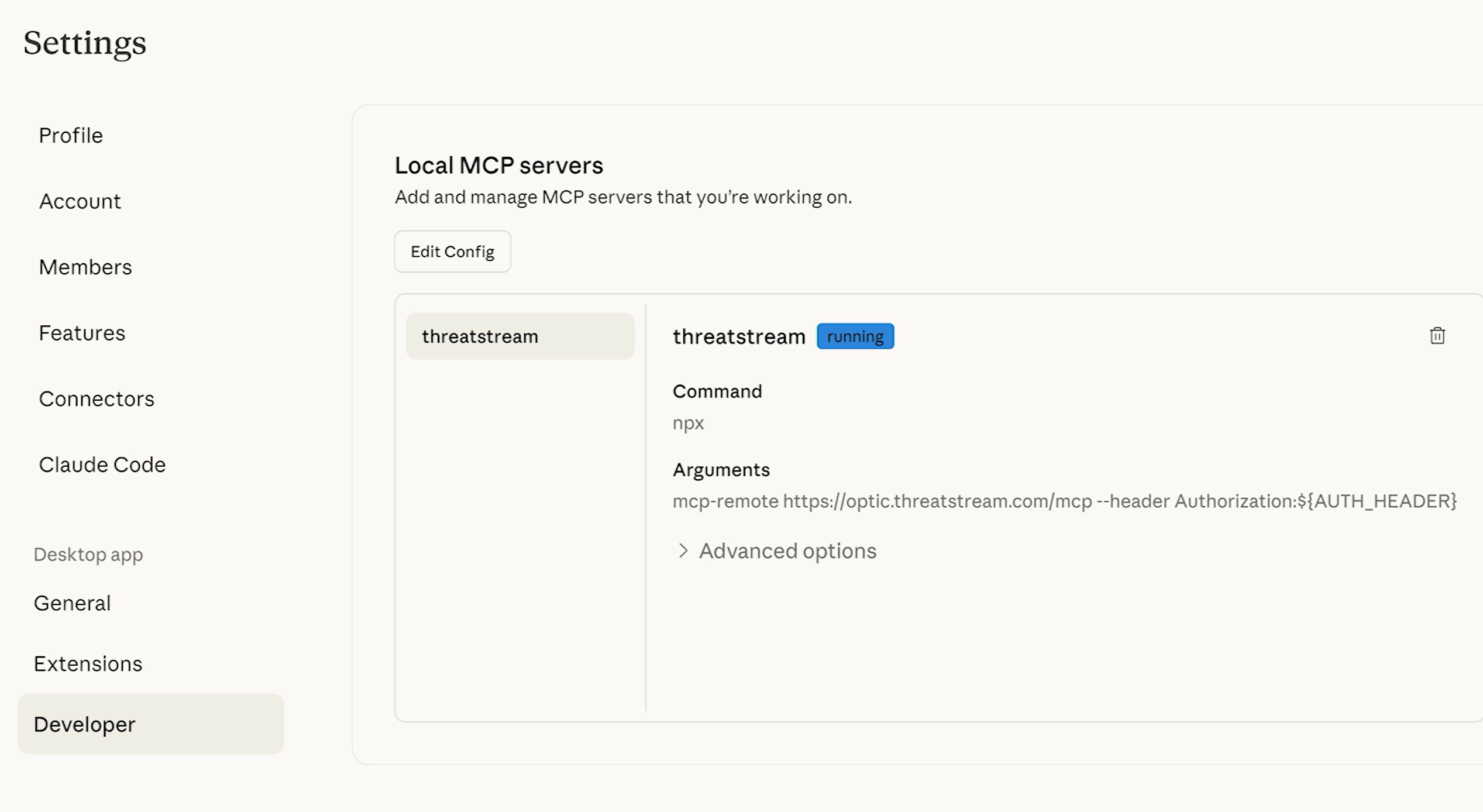
You can now enter questions in the Claude desktop app. Responses will be enriched with intelligence directly from ThreatStream.
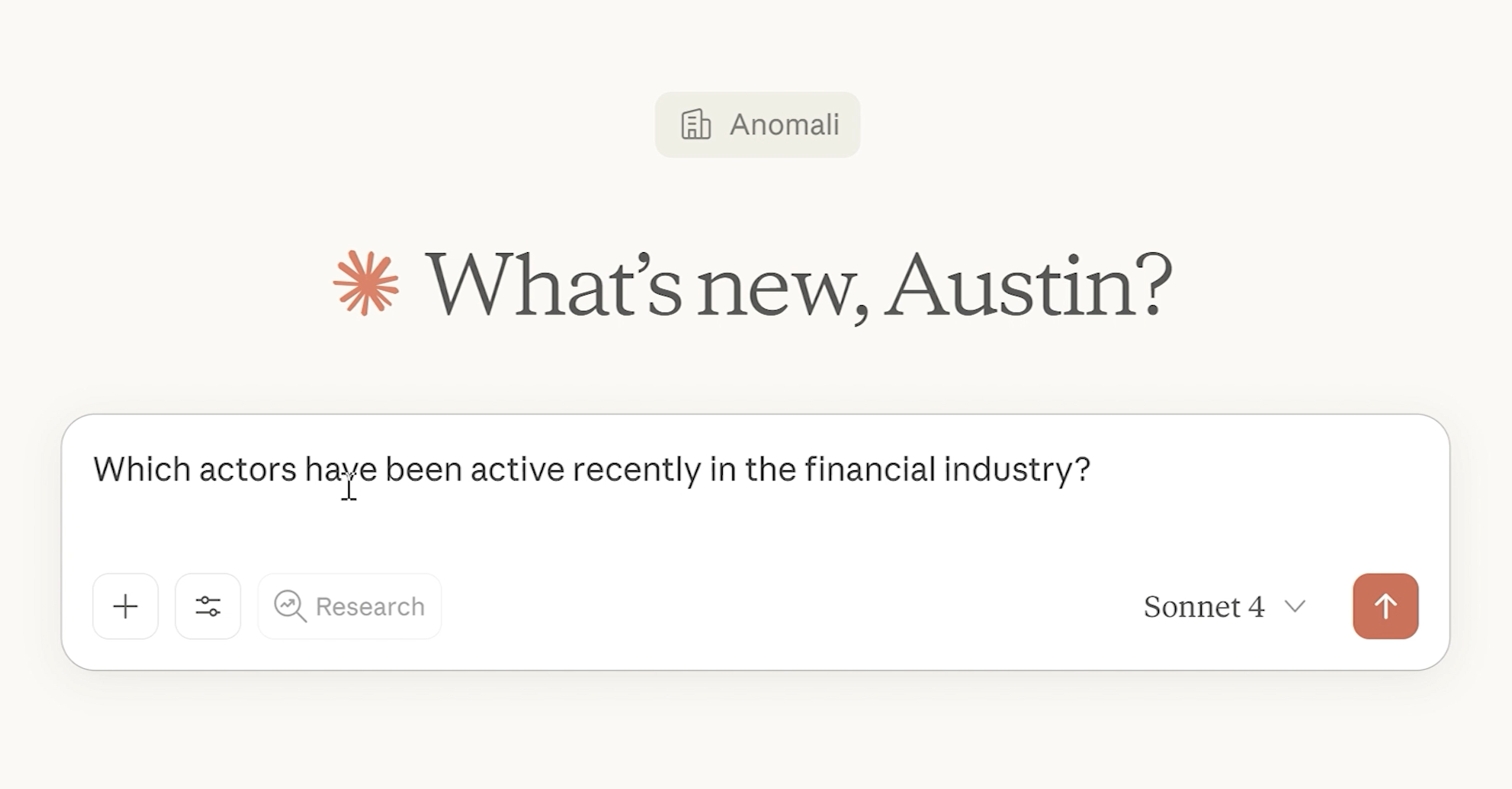
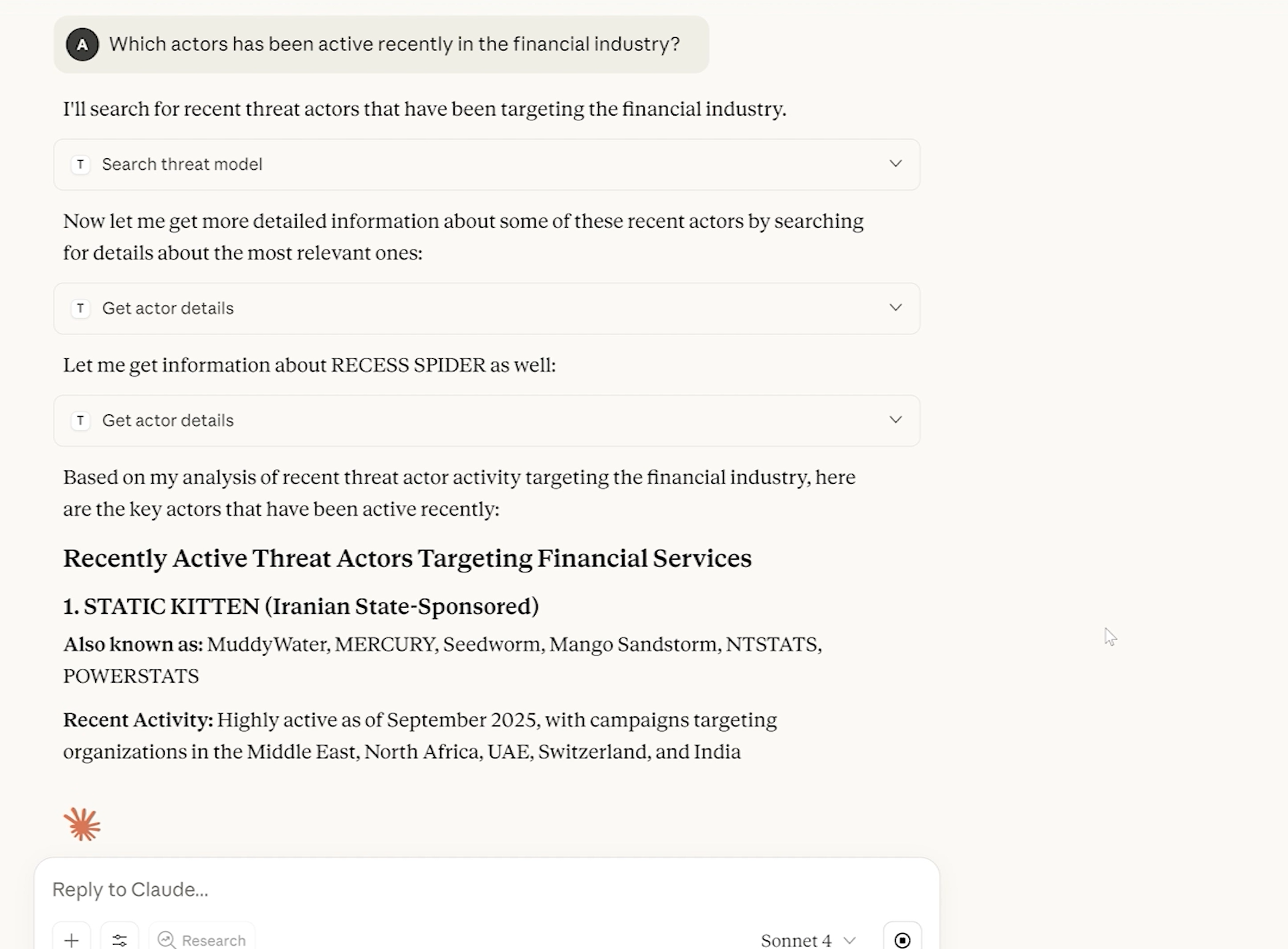
Below is an example of the question and response generated by Claude based on ThreatStream data.
Question
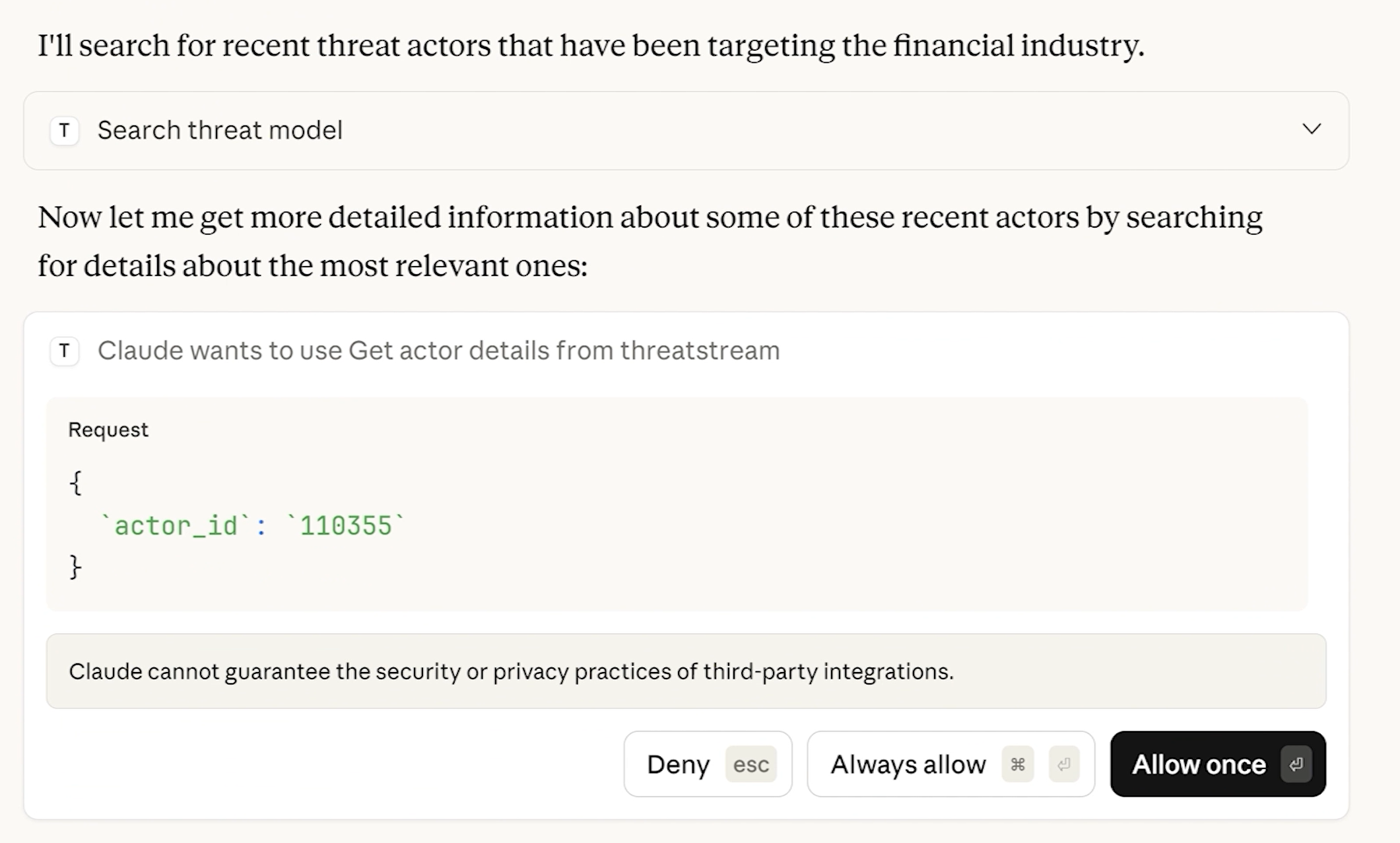
Response
For Claude to pull in data from ThreatStream, click Always allow or Allow once.
Best Practices for Using Claude with ThreatStream
-
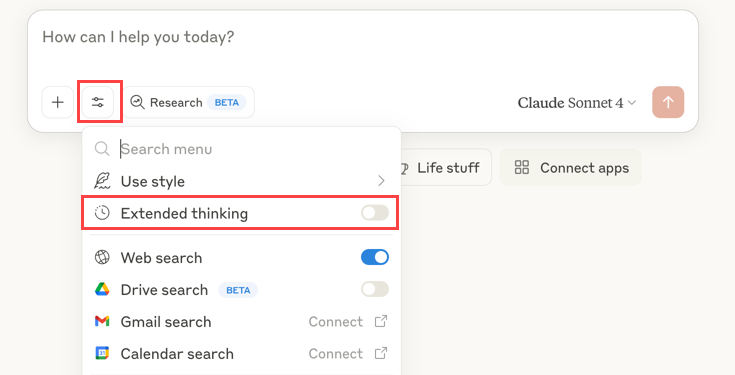
Enable Extended thinking in Claude’s Search and Tools settings for complex questions and deeper analysis.
-
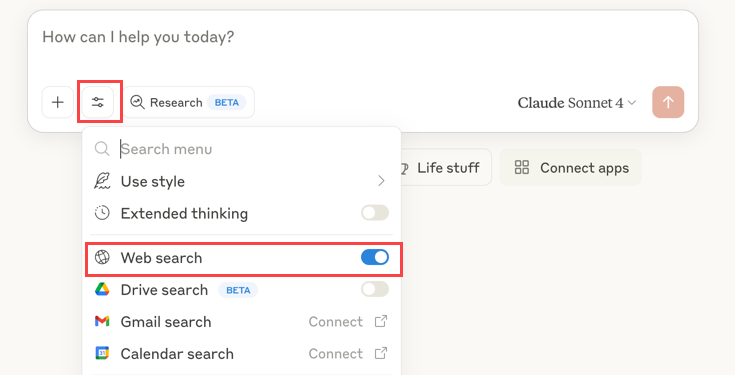
Disable Web Search in Claude’s Search and Tools settings to avoid web-sourced content and reduce the risk of hallucinations.
-
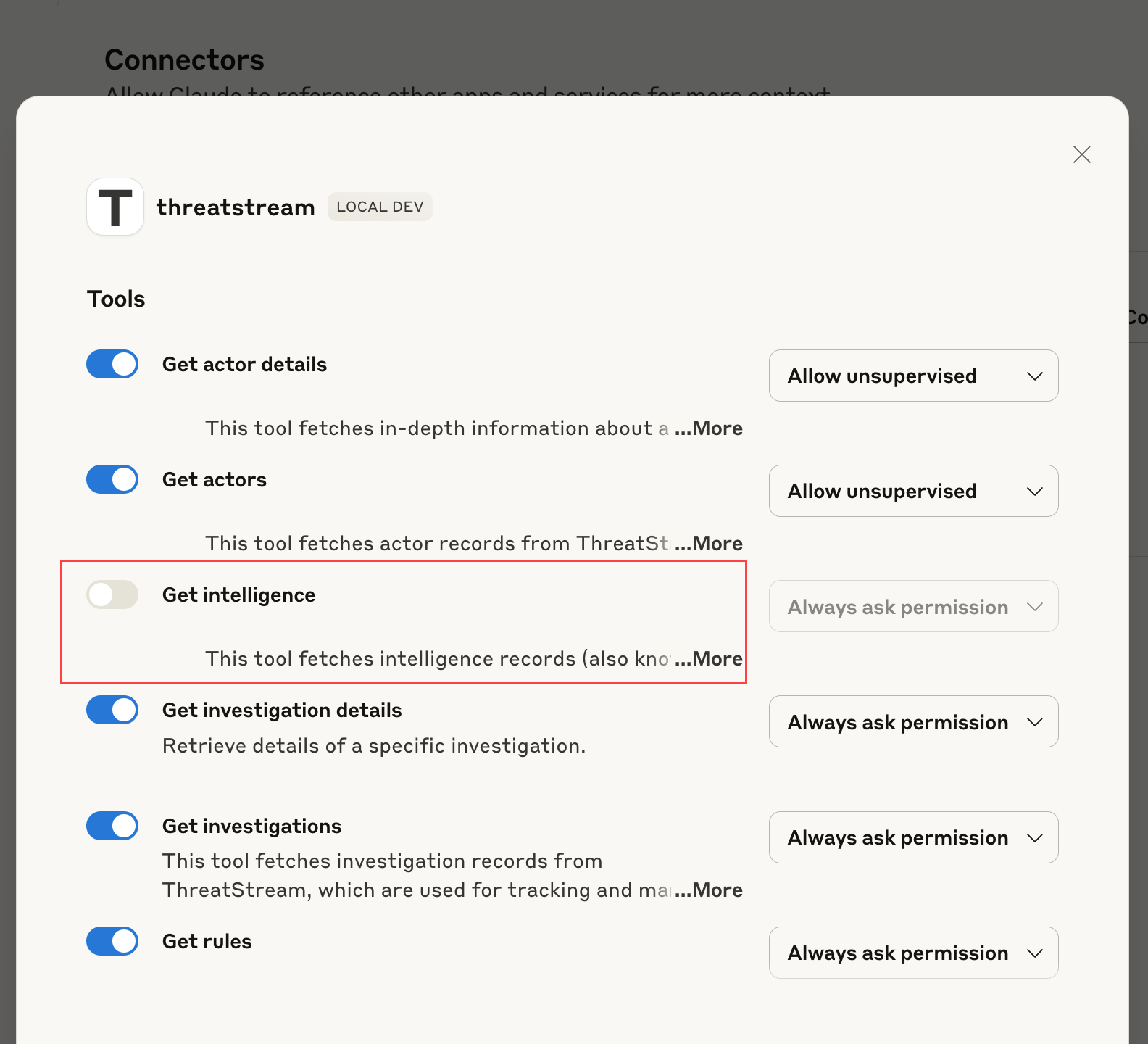
Filter the type of ThreatStream data to be used in responses by using prompts or ThreatStream tools in the Connectors menu. This can also help you avoid hitting query limits.
Example
Exclude observables by disabling Get intelligence in the Tools.
-
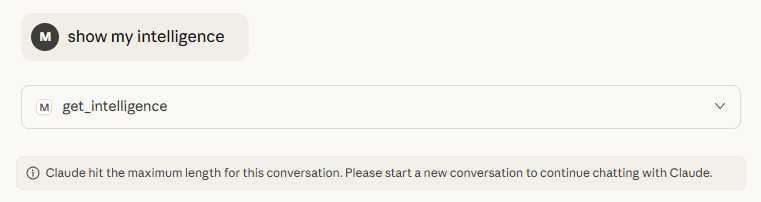
If you see the Claude hit the maximum length for this conversation message, upgrade your Claude account or start a new conversation to continue chatting.