Creating Automated Tasks
You can create your own automated tasks. A task consists of the following:
-
Trigger—a starting point of an automated task. An observable in an investigation can be a trigger.
-
Actions—checks and transformations that will be done on a trigger for more detailed analysis. An enrichment in an investigation can be an action.
Each automated task has one trigger and can have up to 20 actions.
To create an automated task:
-
Navigate to ThreatStream > Manage > Task Automation.
-
Click New in the upper-right corner.
-
In the Details pane, do the following:
-
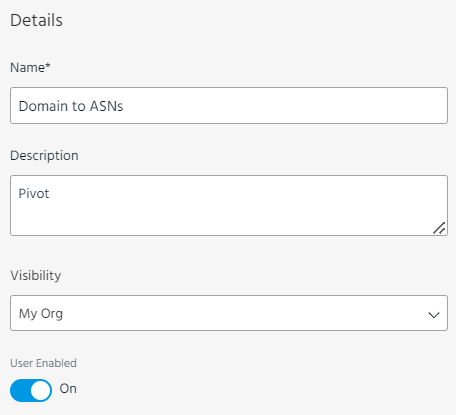
Specify the Name and Description of the automated task.
-
Select a Visibility setting for the automated task. By default, the automated task is visible only to you. You can expand visibility to all users in your organization (My Organization).
Note: Anomali recommends setting the Visibility to Me until the automated task is ready to be shared with your organization. -
To make the automated task available in investigations, switch User Enabled on.
-
- In the Triggers pane, click Add Trigger, and then in the Edit Trigger dialog box, do the following:
-
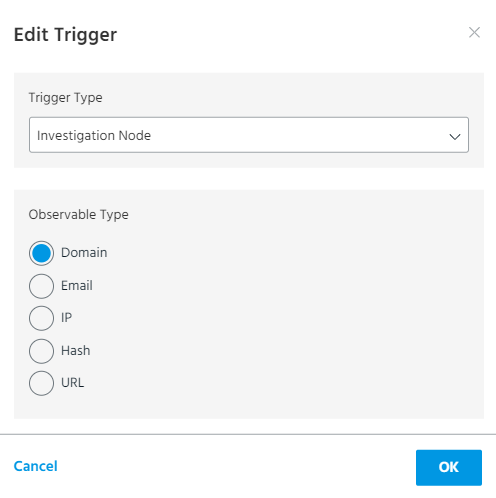
Leave Trigger Type set to Investigation Node.
-
In Observable Type, select the type of the observables for which the automated task will be available.
For example, if you set up the Domain observable type as a trigger for the automated tasks, you cannot apply this task in investigations for the other observable types.
-
Click OK.
-
In the Actions pane, click Add Actions, and then in the Add Action dialog box, do the following:
-
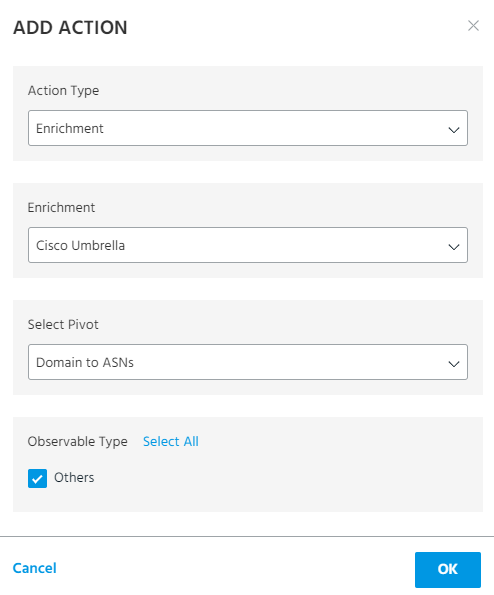
Leave Action Type set to Enrichment.
-
In Enrichment, select the enrichment, which you want to use in the investigation.
-
In Enrichment Actions, select the action, which you want to apply to the observable under investigation.
Note: Available actions depend on the observable type that you have selected as a trigger and the enrichments that are active in your organization. -
In Observable Type, select one or more observable types that will be the output of the automated task.
-
Click OK.
The first action is added, and now you can proceed with adding the next action.
Note: You can add up to 20 actions in one automated task.
-
-
Once you have added all necessary actions, click Save.
Your automated task is created, and it is available in the list of automated tasks on the Manage > Task Automation page.