Exporting Attack Surface Management Data
Once you have ASM results generated, you can export ASM data the following ways:
-
Export to a CSV file
-
Export to a PDF file
For details, refer to the following sections:
Exporting ASM Results to a CSV File from the Asset Inventory Tab
Exporting ASM Report Details to a CSV File
Exporting Widgets to a PDF File
To export the latest ASM results to CSV file from the Asset Inventory tab:
-
Navigate to ThreatStream > Analyze > Attack Surface Management.
-
Click the Export to CSV icon in the top right corner of the asset table to start the downloading process.
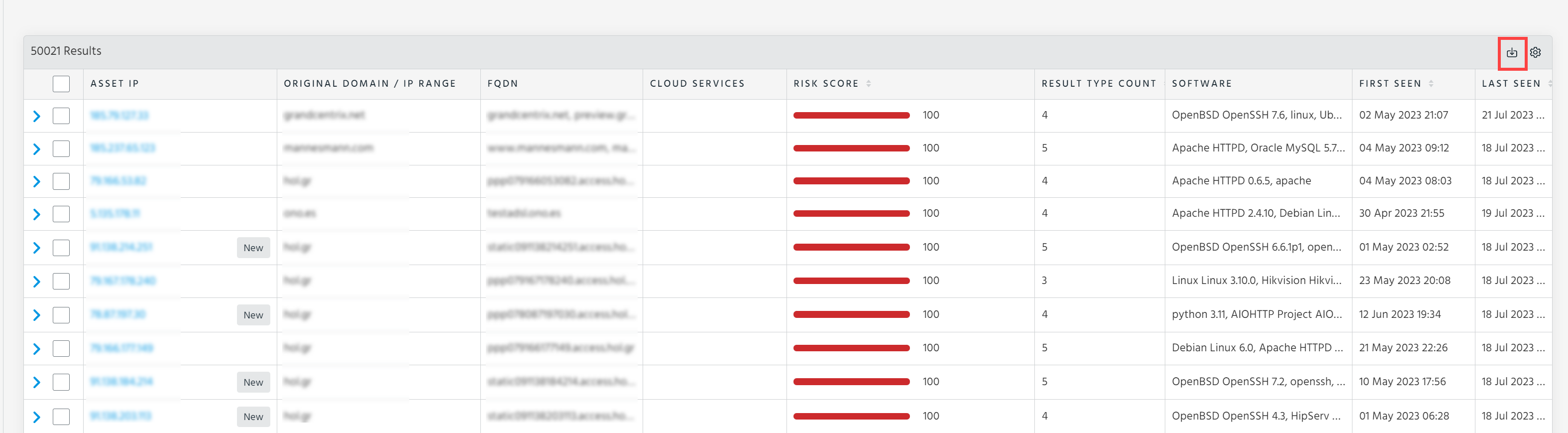
To export details of selected assets, select assets of your interest and click the Export to CSV icon to start the downloading process.

To export details of an ASM report to a CSV file:
-
Navigate to ThreatStream > Analyze > Attack Surface Management.
-
Click the Reports tab.
-
Click the ASM report of your interest.
-
Click the Export to CSV icon in the top right corner of the table to start the downloading process.
Note: Exported details are generated based on your table settings and applied filter options. See Viewing Attack Surface Management Report Details for details.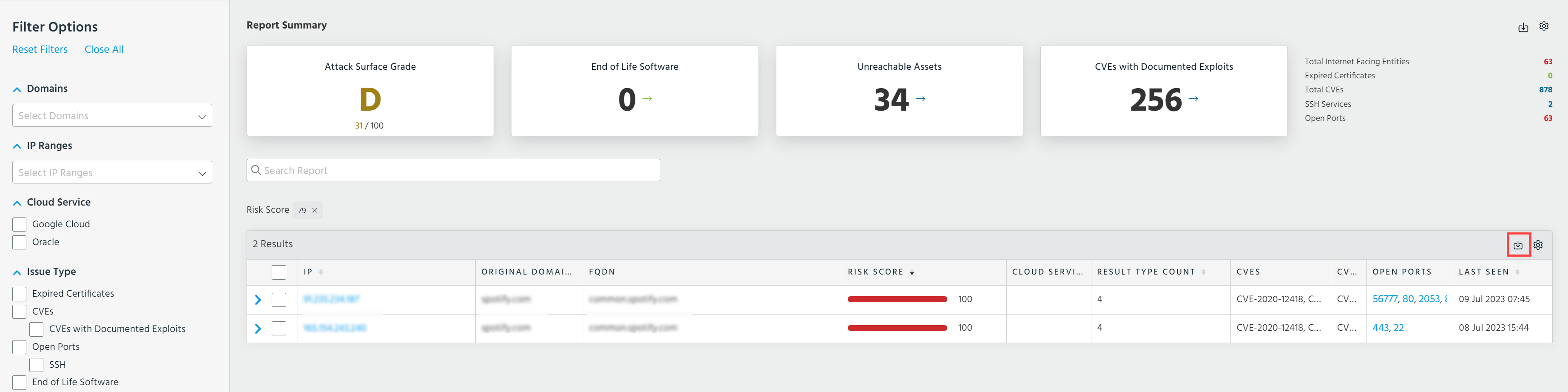
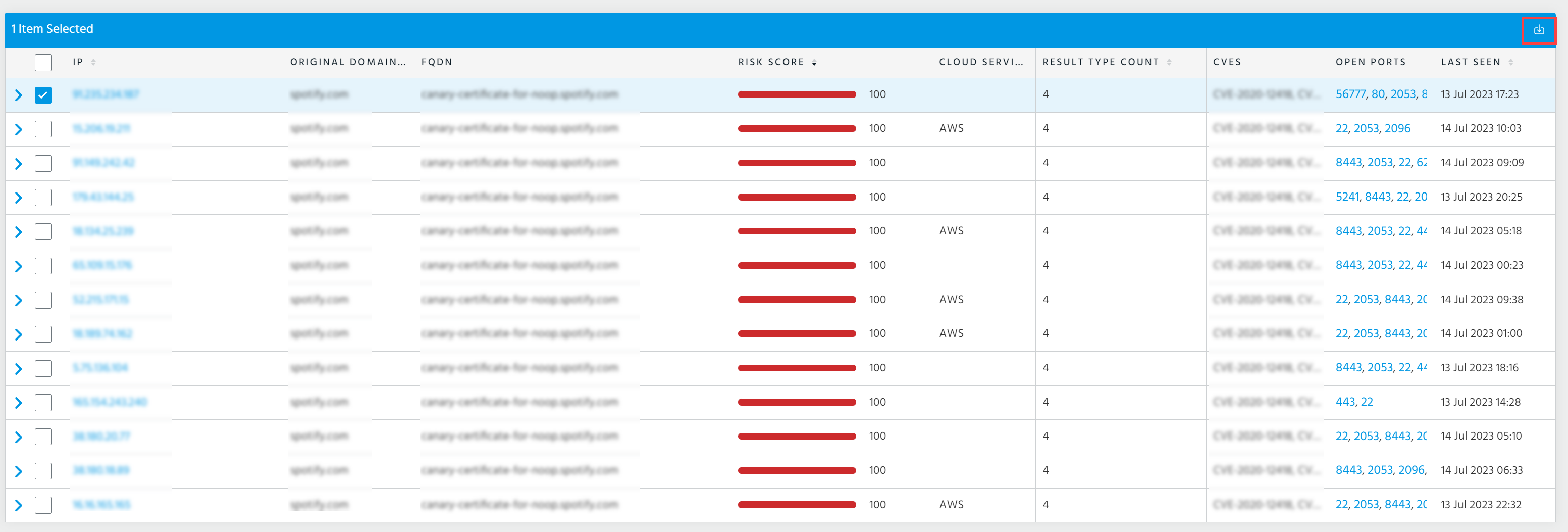
To export details of a single IP address from an ASM report, select the IP address of your interest and click the Export to CSV icon to start the downloading process.
To export widgets to a PDF file:
-
Navigate to ThreatStream > Analyze > Attack Surface Management.
-
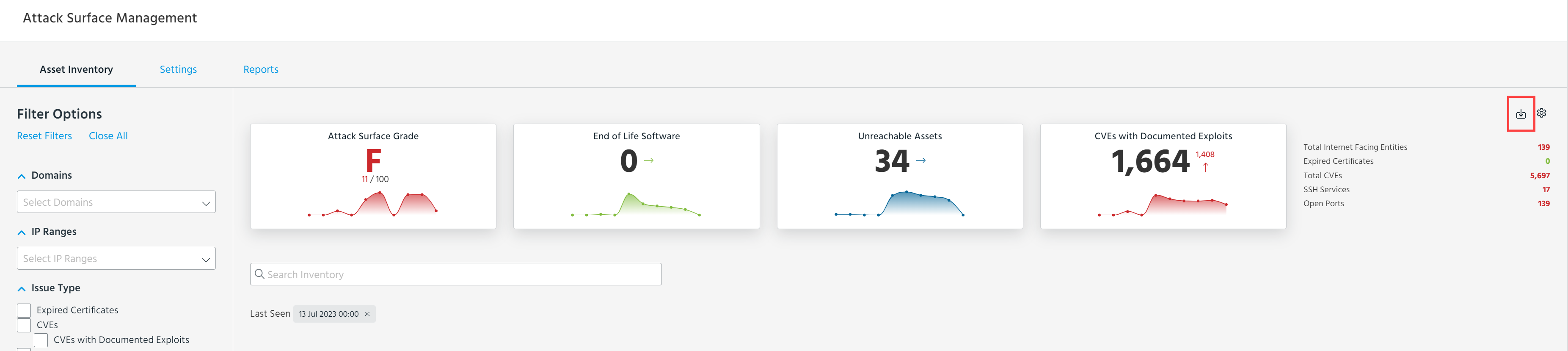
In the top right corner of the page, click the Export PDF icon to start the downloading process.
-
Select the widgets that you want to include.
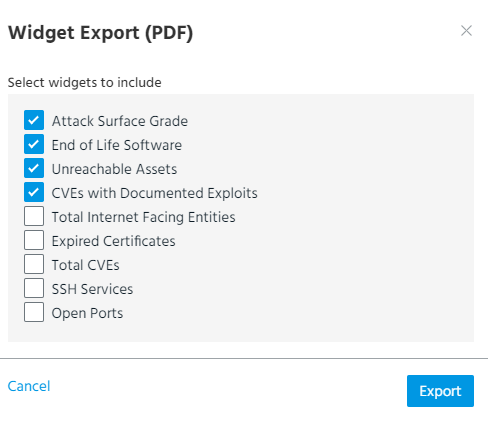
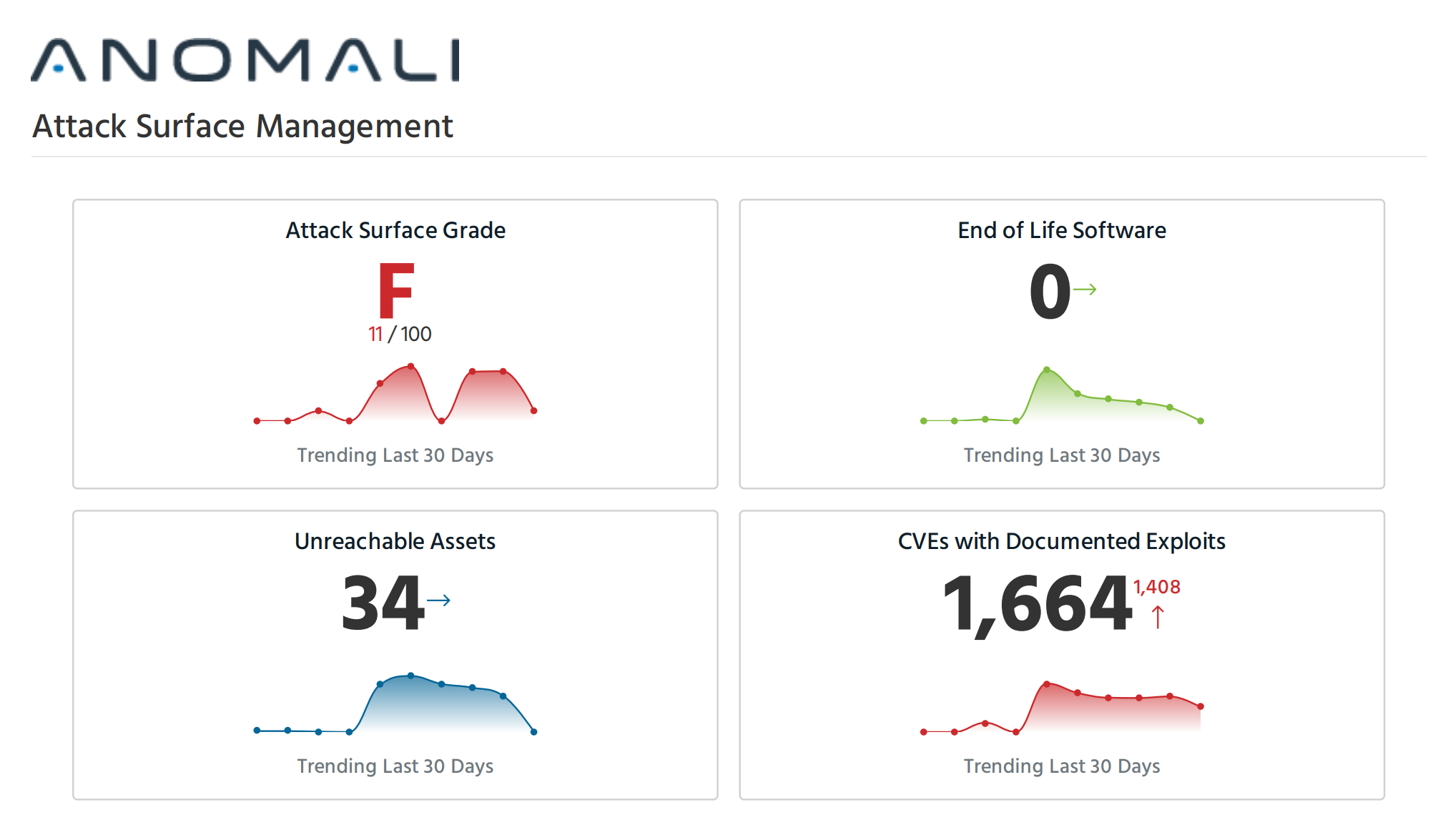
The PDF file contains widget details based on applied time interval.
Below is the example of the exported widgets.
Alternatively, you can export widgets to a PDF file from the Reports tab and ASM report details pages. See Accessing Attack Surface Management History and Viewing Attack Surface Management Report Details for details.