Configuring Attack Surface Management Settings
When accessing the Attack Surface Management page for the first time, an Org Admin must configure ASM settings for your organization. The following settings must be configured for Anomali to start generating ASM data:
-
Domains and associated tags
-
Excluded subdomains
-
IPs/IP range and associated tags
-
Schedule for scanning organization assets
All ASM settings can be re-configured at any time. The new changes will take effect during the next asset scan.
The Settings tab is hidden for non-Org Admin users.
You can configure up to 10,000 top-level domains and 2,000 IP addresses (including CIDR ranges) per organization.
All tags are private and visible only to organization users.
To configure ASM settings:
-
Navigate to ThreatStream > Analyze > Attack Surface Management.
-
Click Settings.
-
In the Domain & IP section, add a single domain or multiple domains. You can add up to 10,000 top-level domains. Subdomains are discovered automatically.

To add a single domain:
-
Click New below the domains table.
-
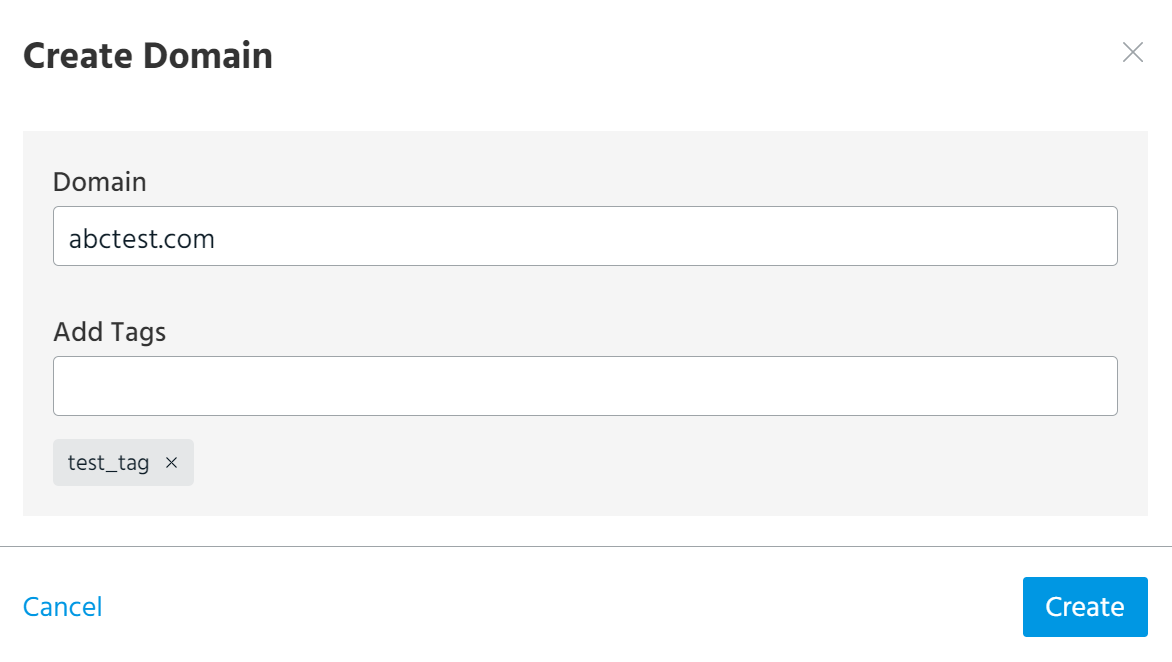
In the dialog box that opens, enter an organization domain name and optionally, add tags associated with this domain. Tags can always be added to the domain later.
-
Click Create.
The newly added domain is displayed in the Domains table. The tags associated with the domain also appear in the Tag section.
To add domains in bulk:
-
Above the Domains table, click CSV structure file to download the CSV template, which you can use to create a list of domains and tags.
-
In the CSV template file, list your organization domains in the value column and associated tags— in the tags column.
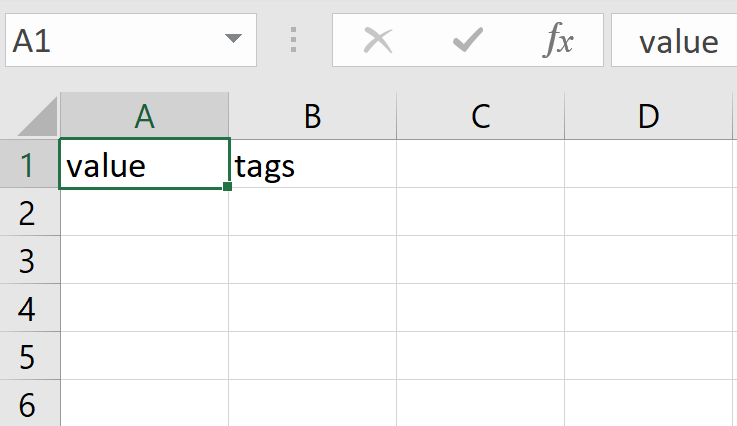
Once the list is complete, save the file changes.
-
To upload the CSV file with the list of domains and tags, click Upload CSV above the Domains table.
-
Select the CSV file that you have created and click Upload.
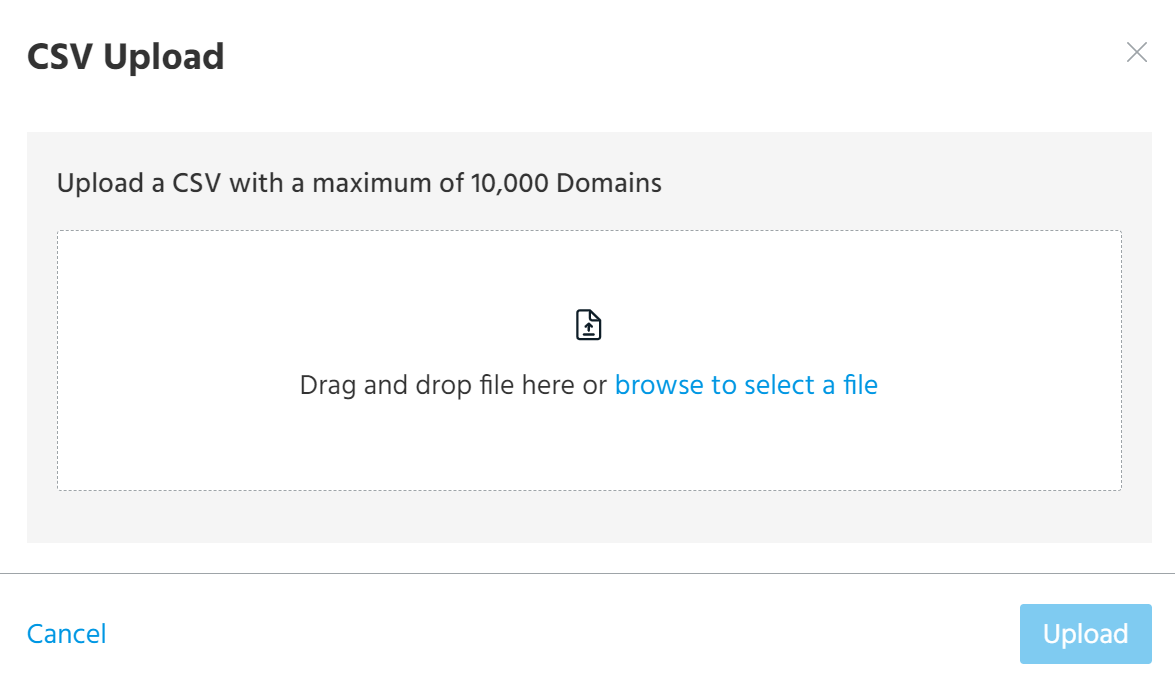
The newly added domains appear in the Domains table. The tags associated with these domains also appear in the Tag section.
-
-
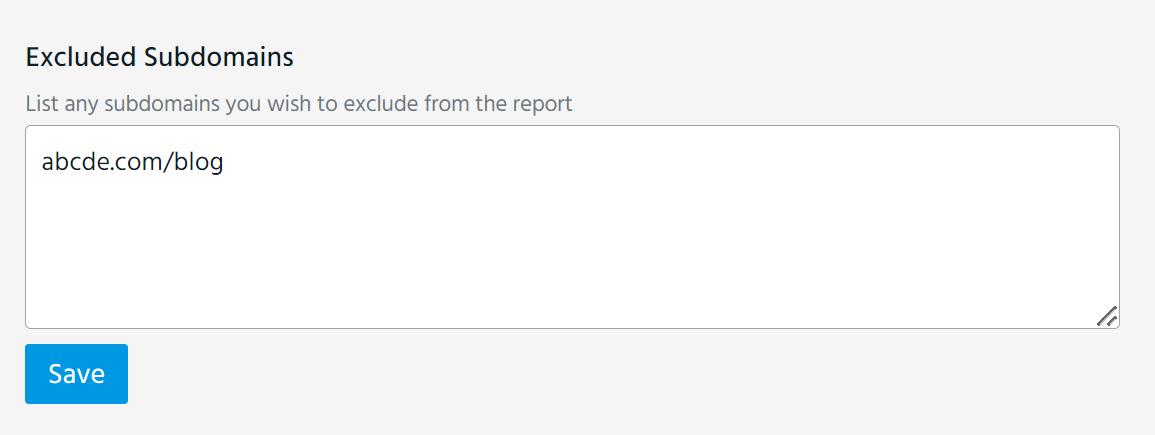
In the Excluded Subdomains text box, list all subdomains that you want to exclude from assessing and click Save.
-
Add IP addresses or an IP range in CIDR format which you want Anomali to scan and assess. You can add a single IP address or multiple IP addresses.

To add a single IP:
-
Click New below the IPs table.
-
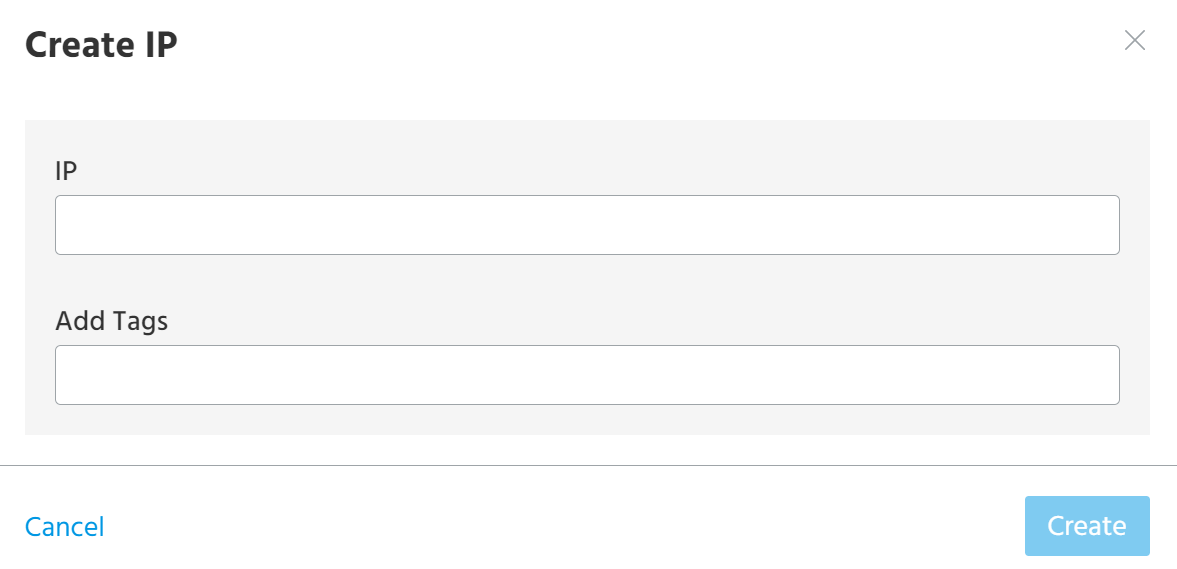
In the dialog box that opens, enter an IP and optionally, add associated tags. Tags can always be added to the IP later.
-
Click Create.
The newly added IP appears in the IPs table. The tags associated with the IP also appear in the Tag section.
To add IPs in bulk:
-
Above the IPs table, click CSV structure file to download a CSV template, which you can use to create a list of IP addresses and tags.
-
In the CSV template file, list your organization IPs in the value column and associated tags— in the tags column. You can add up to 2,000 IPs (including IP addresses in the CIDR format). To add more than 2,000 IPs, contact Anomali Customer Support or your Anomali Sales representative.
-
Save the changes in the CSV file and click Upload CSV above the IPs table.
-
Select the CSV file that you have created and click Upload.
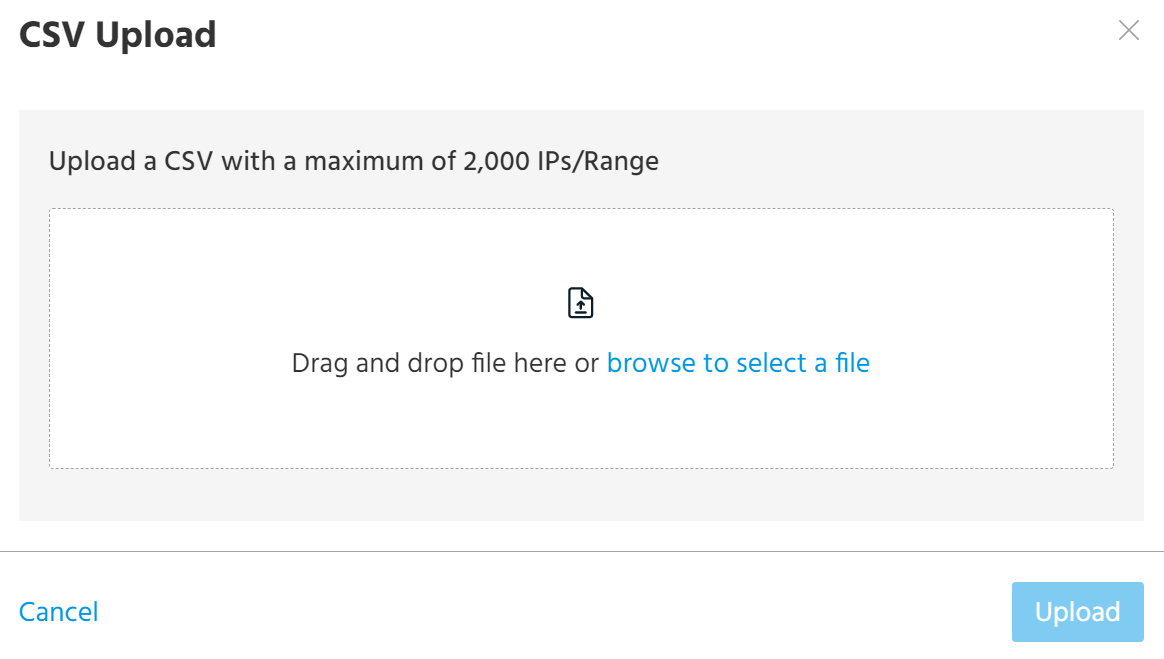
The new IPs appear in the IPs table. The tags associated with these IPs also appear in the Tag section.
-
-
In the Schedule section, select a day and time for generating ASM reports.
 Note: If you re-configure the schedule during the same week when an asset scanning is conducted (between Sunday and Saturday), the new schedule will take effect only the next week, after Sunday 12 PM (UTC).
 -
Click Save.
Once ASM data is generated, it will appear on the Asset Inventory tab and in the latest ASM report on the Reports tab.