Assigning a Status to Asset Issues
From the latest Attack Surface Management report details and asset details pages, Org Admins can assign the following statuses to asset issues:
- False Positive: Assign this status when you believe that the issue is false positive.
-
Mitigated: Assign this status when the issue requires mitigation.
-
Accepted Risk: Assign this status when you decide to accept the risk associated with the issue and leave it as is.
-
Hidden: Assign this status when you want to remove the issue from the ASM report and not include it in the Asset Risk Score.
When an issue status is changed, the issue table and Asset Risk Score are automatically updated.
If all issues of the asset are assigned the Mitigated or False Positive status, the asset is excluded from the ASM report and no longer impacts the Attack Surface Grade until new issues associated with this asset are discovered. See the example below.

You can assign a status to selected issues on the asset details page, or you can assign a status in bulk to the issues which are common to multiple assets on the Attack Surface Management report details page.
To assign a status to selected asset issues from asset details pages:
-
Navigate to ThreatStream > Analyze > Attack Surface Management.
-
Click the Reports tab
-
Click the latest ASM report.
-
Click the asset of your interest.
-
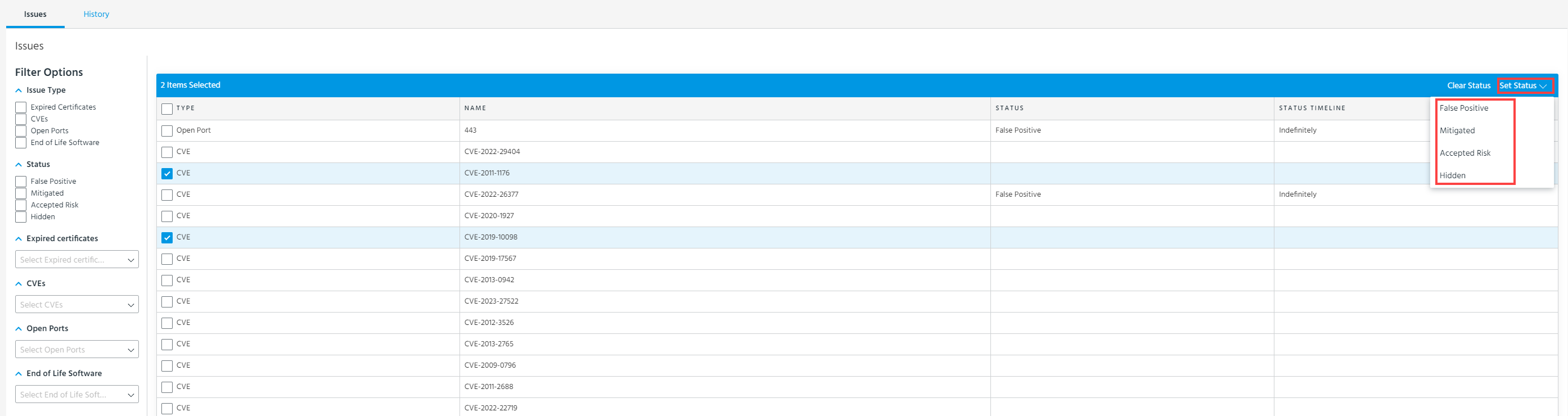
Select the issues whose status you want to change.
-
Select one of the following statuses: False Positive, Mitigated, Accepted Risk, or Hidden.
-
For the Mitigated, Accepted Risk, and Hidden statuses, select one of the following status timeline options in the dialog box that opens: Indefinitely, 7 days, 30 days, 60 days, and custom. By default, the status timeline is set to Indefinitely.
Note: The False Positive status is always assigned the Indefinitely status timeline.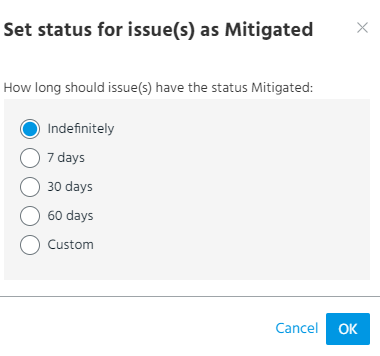
The status is applied to the selected issues, and the risk score of the asset is updated.
To assign a status to the issue common to multiple assets:
-
Navigate to ThreatStream > Analyze > Attack Surface Management.
-
Click the Reports tab.
-
Click the latest ASM report.
-
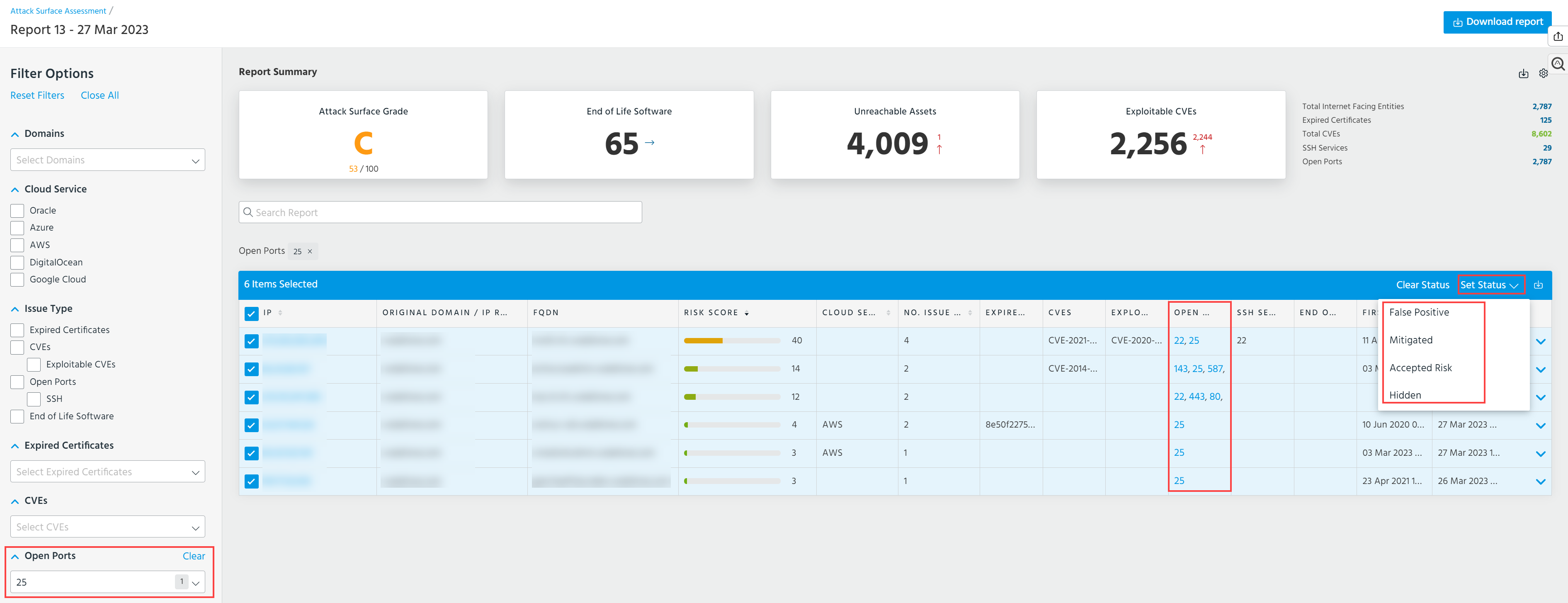
Using the Filter Options, select the issue of your interest.
-
Select the assets that have the issue of your interest and click Set Status.
-
Select one of the following statuses: False Positive, Mitigated, Accepted Risk, or Hidden.
-
For the Mitigated, Accepted Risk, and Hidden statuses, select one of the following status timeline options in the dialog box that opens: Indefinitely, 7 days, 30 days, 60 days, and custom. By default, the status timeline is set to Indefinitely.
Note: The False Positive status is always assigned the Indefinitely status timeline.
The status is applied to the issue, and the risk score of the assets that have this issue is updated.