Using Anomali Lens in ThreatStream
ThreatStream provides an on board version of the Anomali Lens browser plugin—the cybersecurity industry’s first natural language processing (NLP) based web content parser.
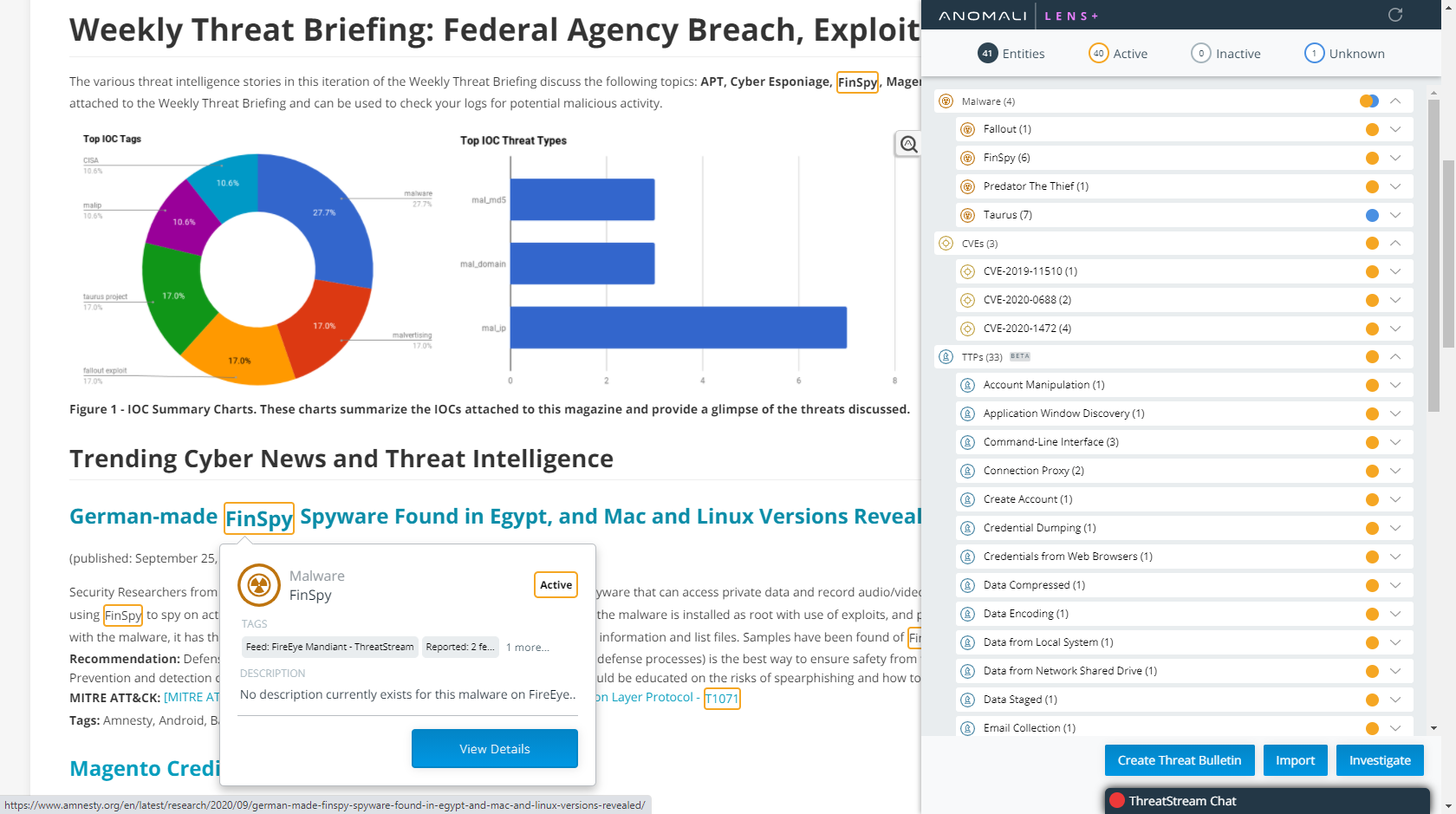
This functionality enables organizations to benefit from Anomali Lens within ThreatStream, without needing to install the plugin.
Note: Anomali Lens in ThreatStream is automatically disabled if you have the Anomali Lens plugin installed on your browser. In these cases, use the plugin to scan pages in ThreatStream.
To scan a page with Anomali Lens in ThreatStream:
Click the Lens icon from anywhere in the platform.
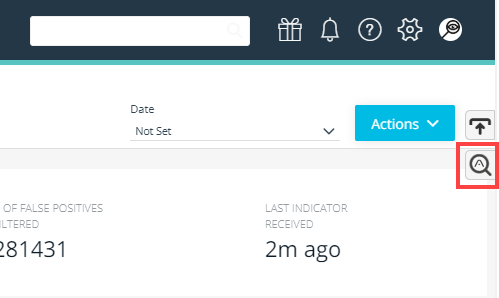
Page content is scanned immediately and results are displayed in the pop-out window. See Scanning Pages with Anomali Lens for more information on how Lens displays scanned page content.
Note: Free Anomali Lens users are limited to 100 scans per organizations per month, including scans executed from the plugin and within ThreatStream. Anomali Lens+ users get an unlimited number of scans. Interested in purchasing Lens+? Contact sales@anomali.com for more information.
Context at the point of use
Anomali Lens can parse any screen in ThreatStream for cyber threat intelligence terms and provide context at the point of use. For example, you scan a Threat Bulletin and a number of observables are highlighted in the body of the Threat Bulletin. You can mouse over the highlighted observables to view metadata, such as Severity, Confidence, associated Indicator Types and Tags. If you want more context, you can click View Details to visit the Observable details page.
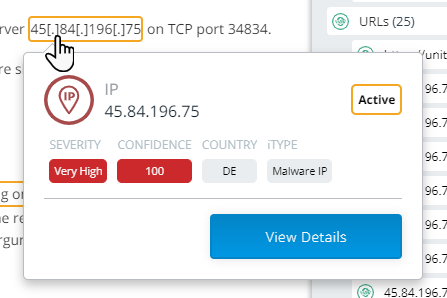
Thus, Anomali Lens enables you to quickly access contextual information and provides a direct vector of entry into comprehensive detail without needing to manually run Observable or Threat Model entity searches.
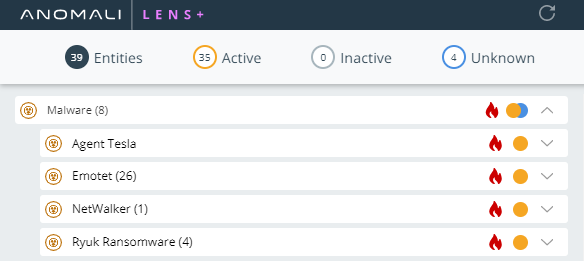
The flame icon is also displayed next to the highlighted entity on the page.
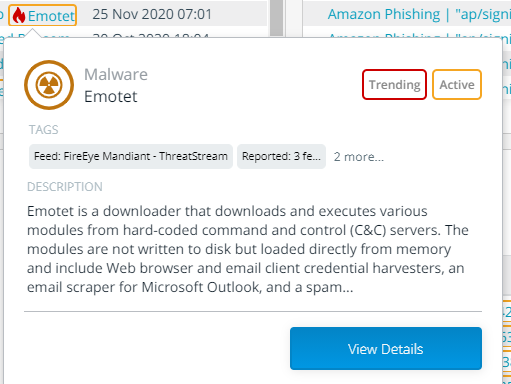
ThreatStream also ensures you know which threats are trending. If you scan a page that contains reference to a threat that has appeared frequently in recent intelligence feeds and articles, a flame icon is displayed next to the term in the scan results list.
Parse new content from the web
Anomali Lens in ThreatStream scans content within the ThreatStream user interface. However, you can leverage Lens in ThreatStream to scan content from the web by pasting it into a text editor, such as the description of a Threat Bulletin.
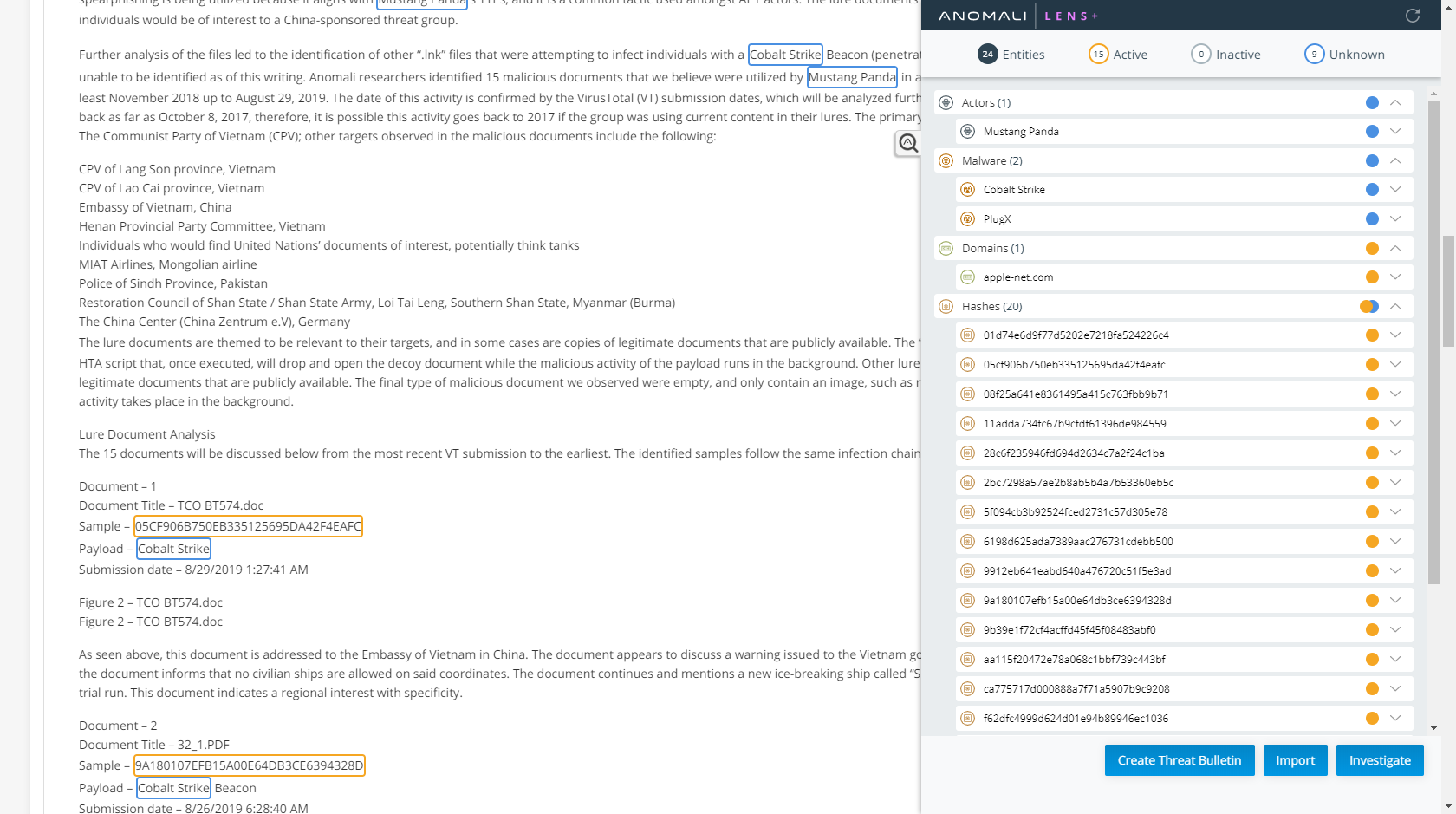
Content does not need to be saved in order for Anomali Lens to scan it. Lens cannot scan content in the rich text or markdown editors when an entity is in edit view. However, Lens can scan content in the markdown live preview window while in edit view.