Anomali Custom Copilot
The Anomali Custom Copilot feature lets you integrate your own data into the Anomali Copilot chat and receive valuable insights based on your input. A Custom Copilot can help you analyze your organization's assets, user activity, network traffic, customer data, etc.
To create a Custom Copilot, you must upload data in a comma-separated values (CSV) file or utilize a lookup table previously created in Security Analytics. Refer to Lookup Table to learn about lookup tables. After the data upload, a Custom Copilot with a comprehensive summary of your data is created. You can then start a chat session to deepen your analysis and further explore the details of your data.
To access the Custom Copilot feature, click  on the navigation panel, and then click the Custom Copilot tab.
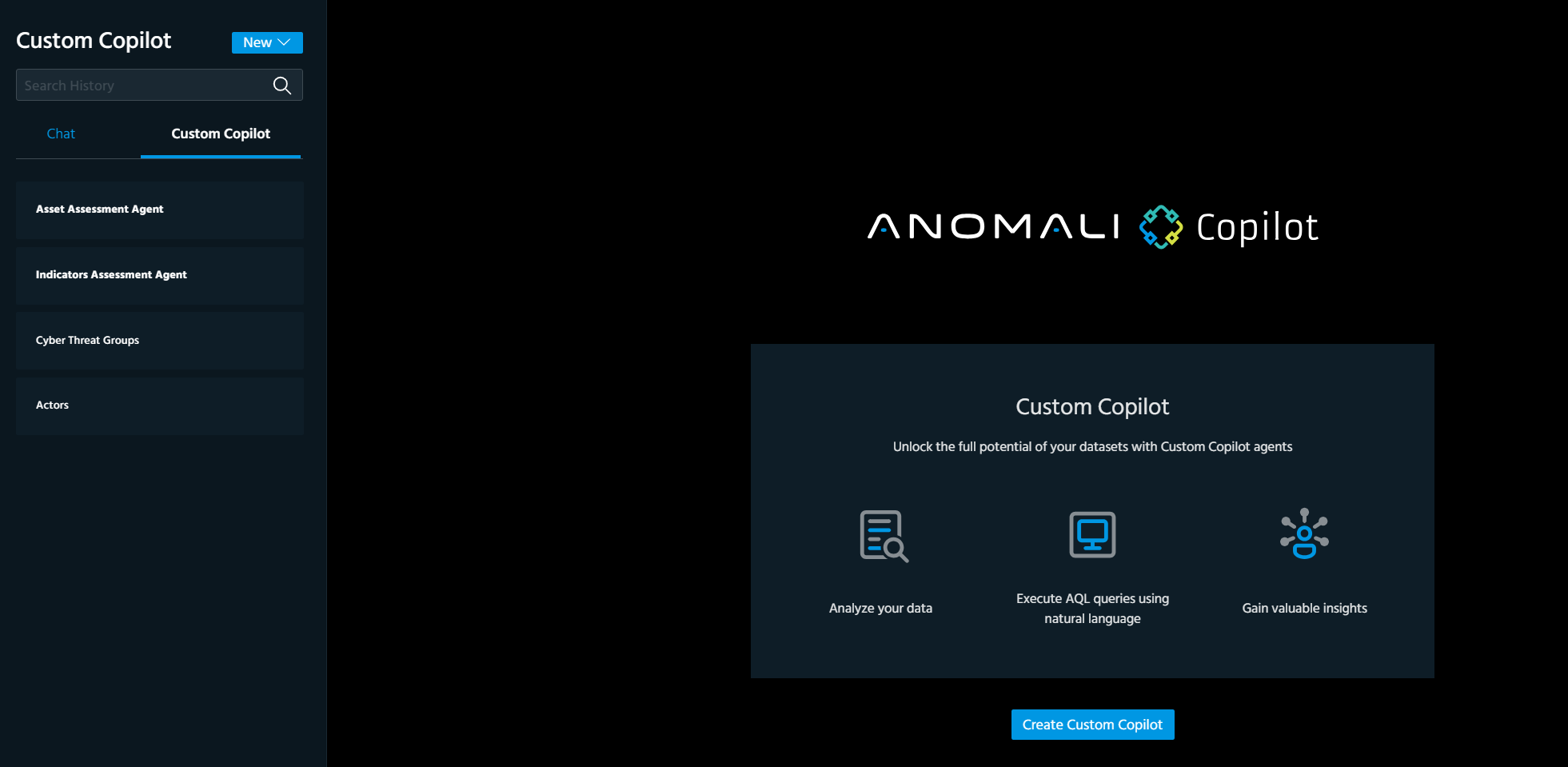
To create a Custom Copilot:
-
Navigate to the Anomali Copilot chat by clicking
on the navigation panel. -
Go to the Custom Copilot tab.
-
Click Create Custom Copilot or New > Custom Copilot.
-
Fill out the fields of the Custom Copilot Template:
Field
Description
Title
Enter a title for the Custom Copilot.
Upload Document
OR
Add Existing Lookup Table
To add custom data to the Custom Copilot, use one of the following data upload options:
-
Upload a CSV file with data that you need to analyze. Maximum file size is 100 MB.
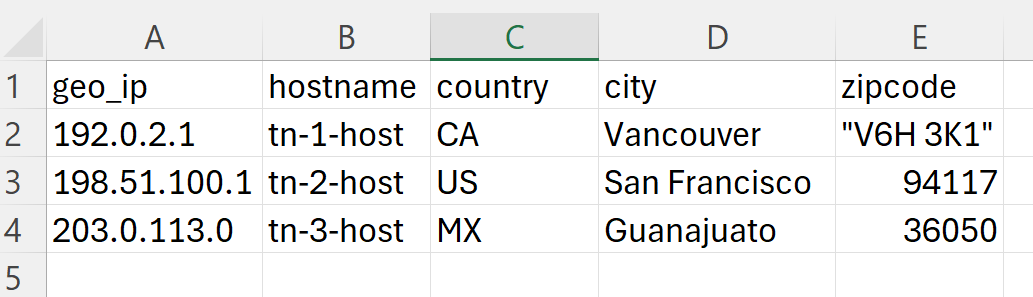
File upload guidelines:The CSV file must have a heading row with the table field names.
Avoid using the same field names as the eventlog schema.
Enclose values that have spaces in straight quotation marks (").
The CSV file must be UTF-8 encoded.
Below is an example of the data uploaded in a CSV file.
-
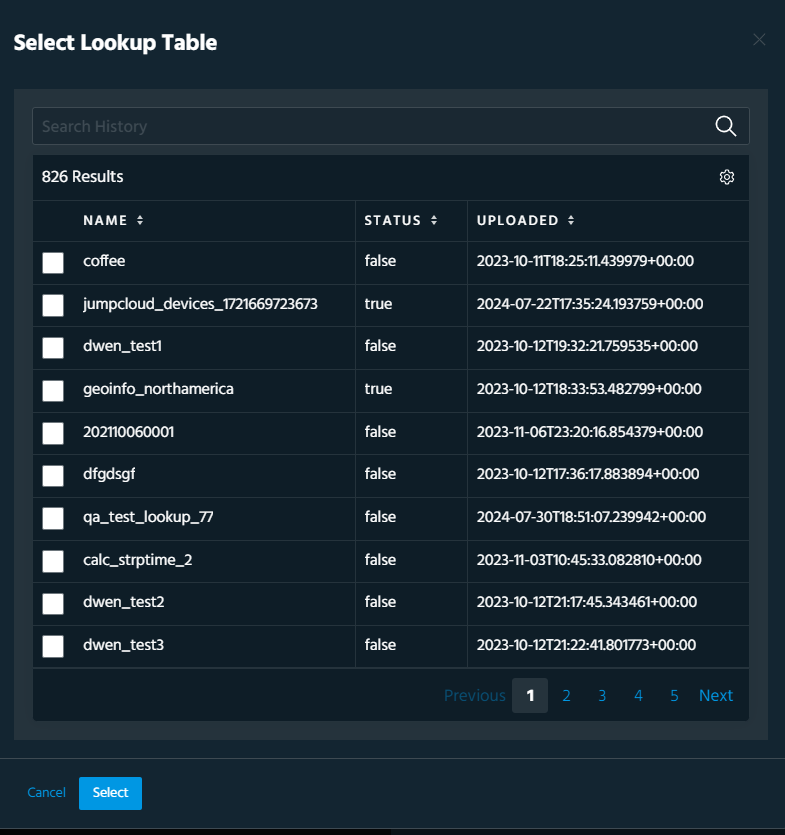
Click Use Lookup Table to select an existing active lookup table, which will be added to the Custom Copilot for analysis. To know more about lookup tables, refer to Lookup Tables.
Description (optional)
Enter a description for the custom data you add.
What are some example use cases for this data (optional)
Enter example use cases for the custom data you add.
For example: "Find users and machines with outdated software".
Note: Even though filling out the last two fields in the template is optional, adding details to these fields will greatly increase the quality of the Custom Copilot. -
-
Click Next.
Allow Anomali Copilot a few seconds to generate a summary of the data you have uploaded.
Below is an example of the summary generated by Anomali Copilot based on the existing lookup table.
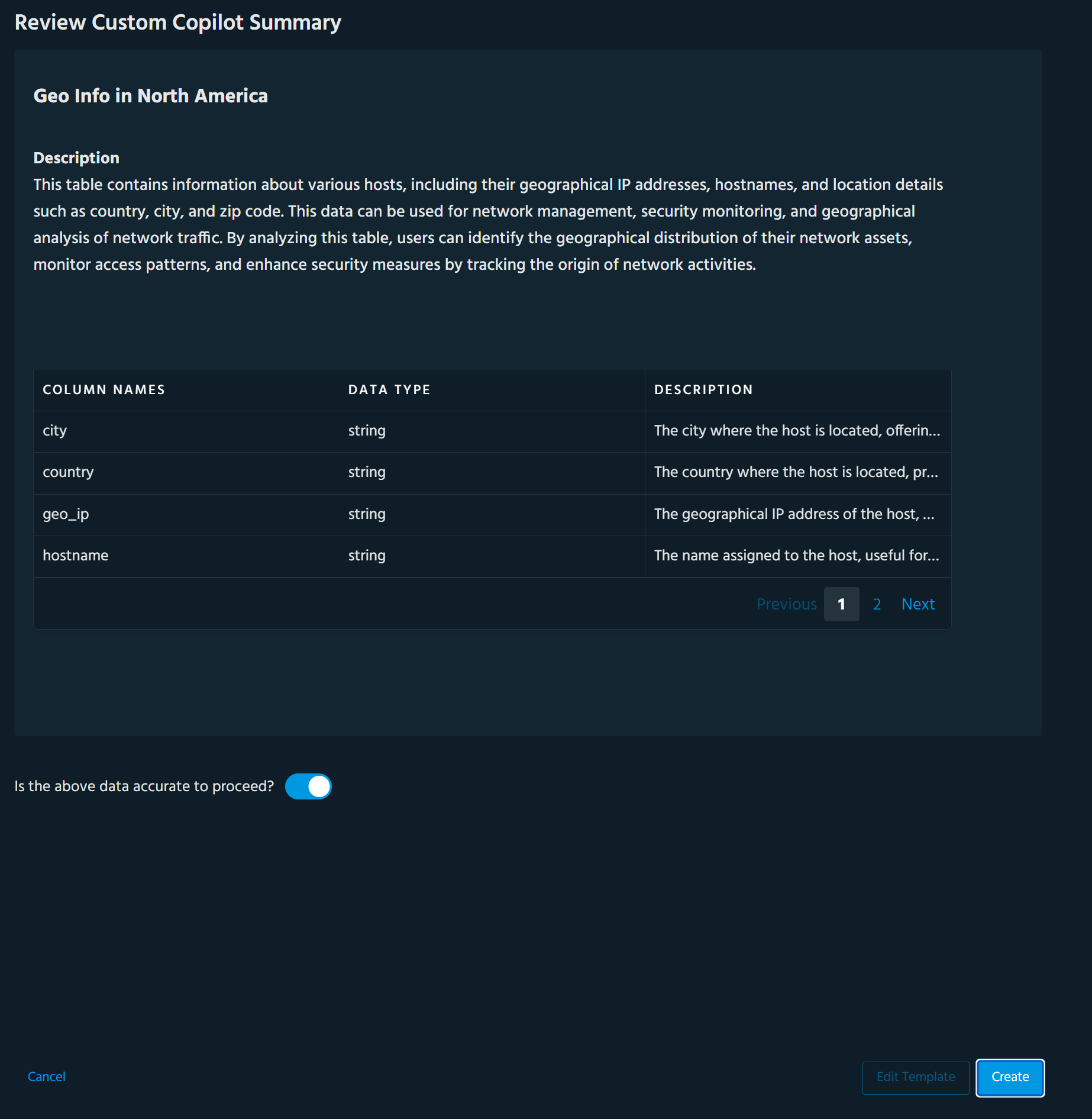
Possible data types displayed on the summary page include string, numeric, and date and time.
-
Before taking the final step in creating the Custom Copilot, review the results. If no changes are required, click Create.
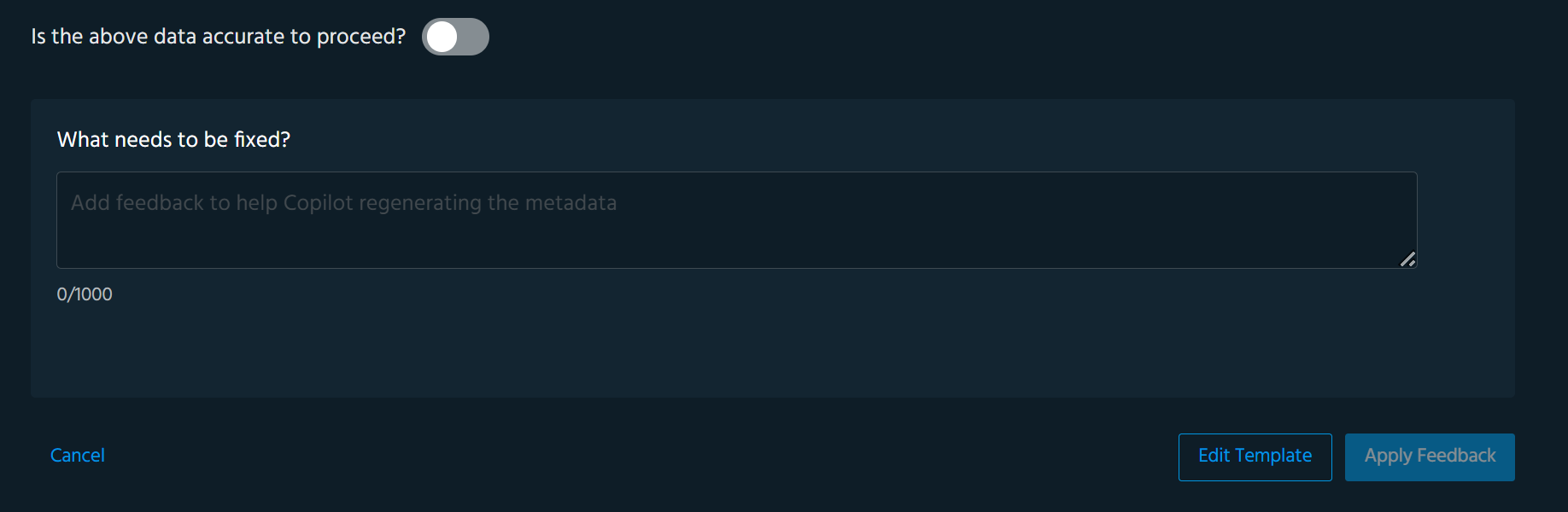
If you believe that the data displayed is not accurate, move the Is the above data accurate to proceed? toggle to the left and enter your feedback to help Copilot regenerate more accurate data.
If you also need to go back and edit the Custom Copilot Template fields, click Edit Template, make the required changes, and click Next.
Click Apply Feedback when you finish reviewing and click Create.
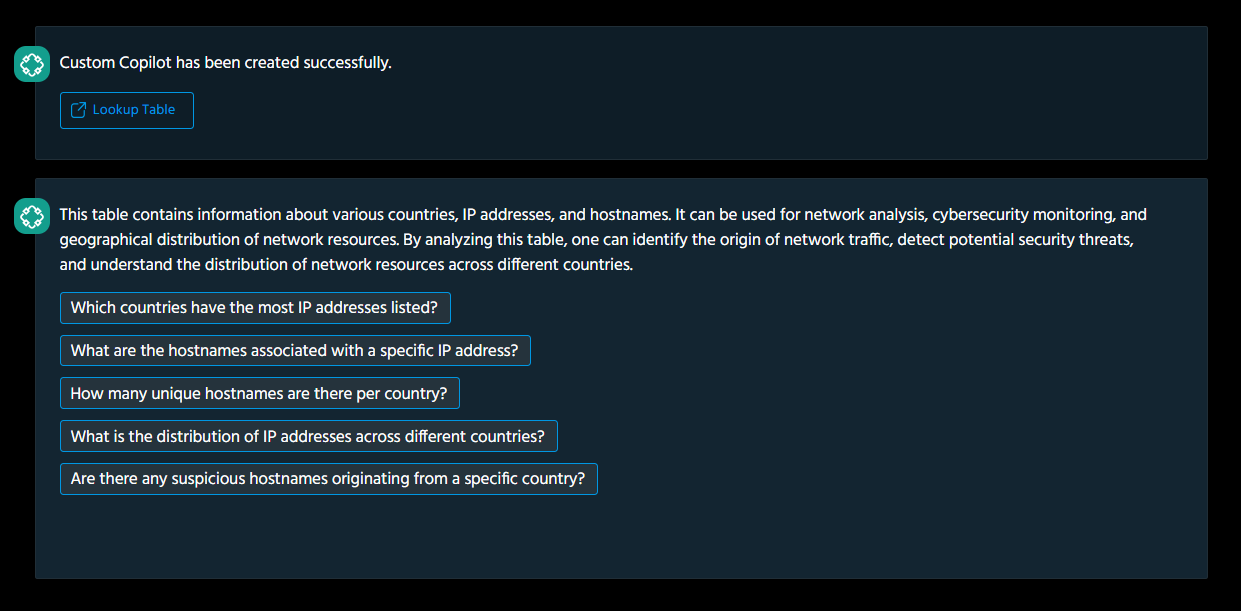
The Custom Copilot is successfully created. You can start interacting with it by exploring suggested questions or entering custom questions in the search field. To view the lookup table details used for data analysis, click Lookup Table.
Custom Copilot responses are displayed in the table and as an AQL query.
Below is an example of the response.
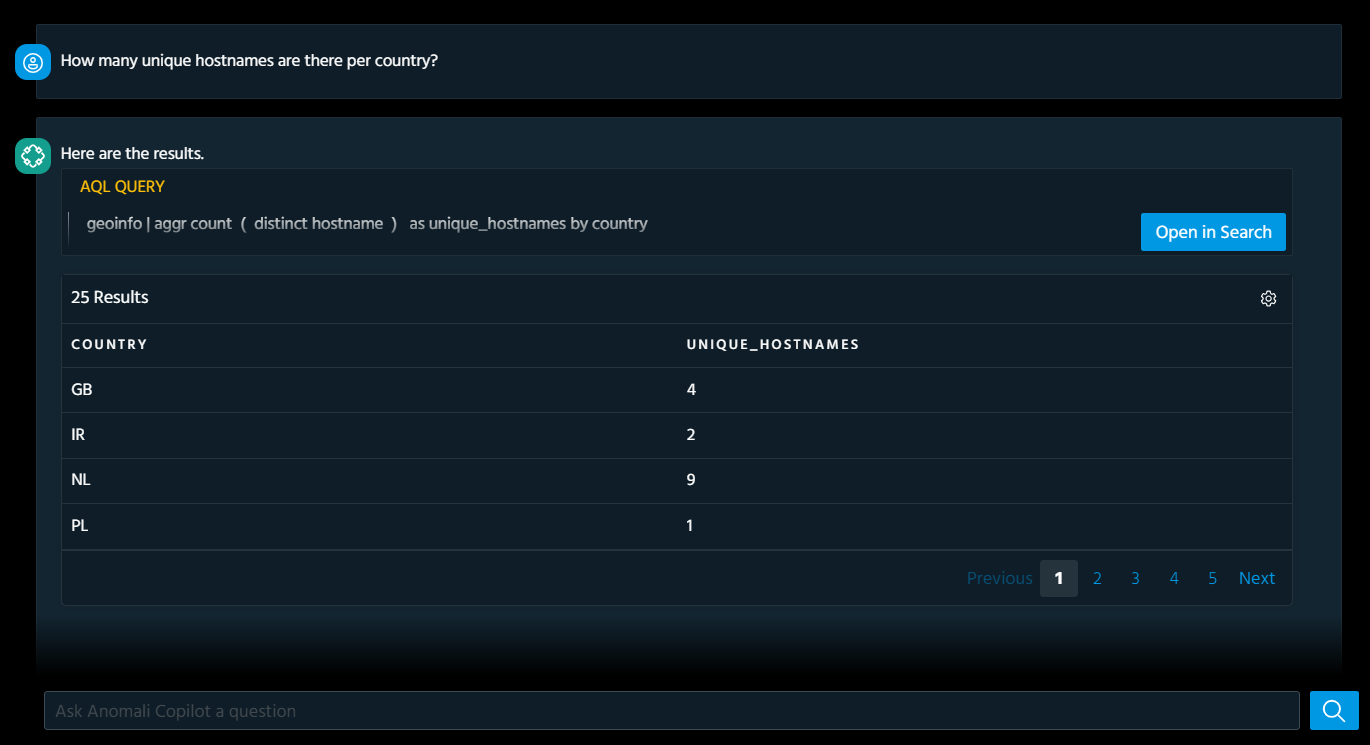
Click Open in Search, if you want to view response details on the Search page.
All chat sessions with the Custom Copilot are saved on the Chat tab under the same name as the Custom Copilot.
Managing Custom Copilots
All your Custom Copilots are saved under the Custom Copilot tab. You can always go back to previously created Custom Copilots to continue data analysis. Additionally, you can take the following actions:
-
Edit a Custom Copilot title
-
Delete a Custom Copilot from the Custom Copilot tab
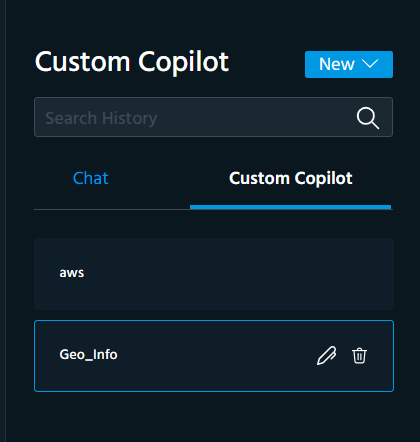
To edit a Custom Copilot title:
-
Click the Custom Copilot of your interest.
-
Click the edit icon (
 ).
). -
Modify the title.
-
Click Enter on your keyboard.
The new title of the Custom Copilot is saved.
To delete a Custom Copilot:
-
This delete action only removes a Custom Copilot from the Custom Copilot tab. It does not delete a lookup table used to create the Custom Copilot.
-
The chat sessions associated with the deleted Custom Copilot remain accessible on the Chat tab. However, If you want to analyze the same data again, you must create a new Custom Copilot.
-
Click the Custom Copilot of your interest.
-
Click the edit icon (
 ).
). -
Click Delete.
The Custom Copilot is deleted from the Custom Copilot tab.