Creating Content with Anomali Copilot in ThreatStream
You can use Anomali Copilot to create Threat Bulletins, Investigations, and Import sessions from anywhere on the platform.
Note: Read Only users cannot create Threat Bulletins, Investigations, or Import Sessions through Anomali Copilot in ThreatStream.
Creating Threat Bulletins from Anomali Copilot
To create a Threat Bulletin from Anomali Copilot:
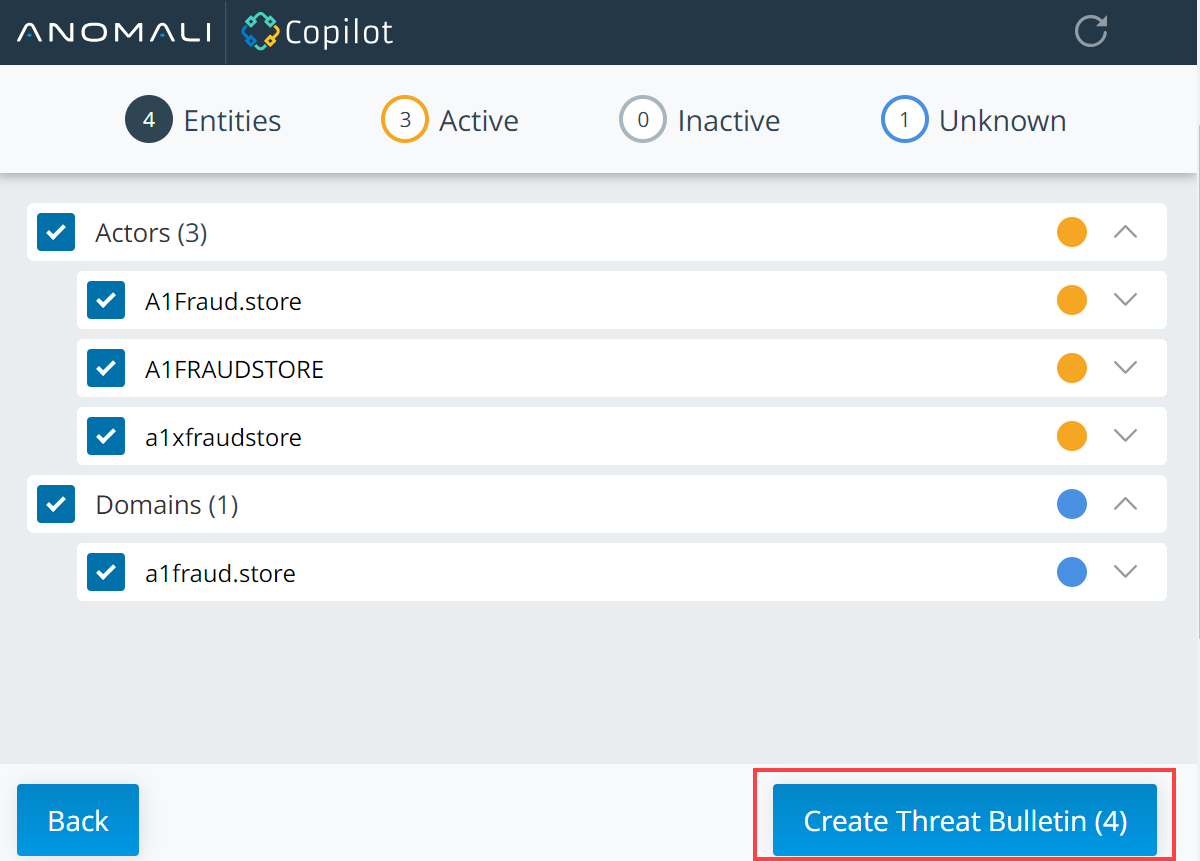
- After scanning an Anomali Copilot page, click Create Threat Bulletin.
-
Select the entities you want to include in the Threat Bulletin. You can also use the filters to select all entities of a particular highlight type.
The number of selected entities is reflected in the Create Threat Bulletin button.
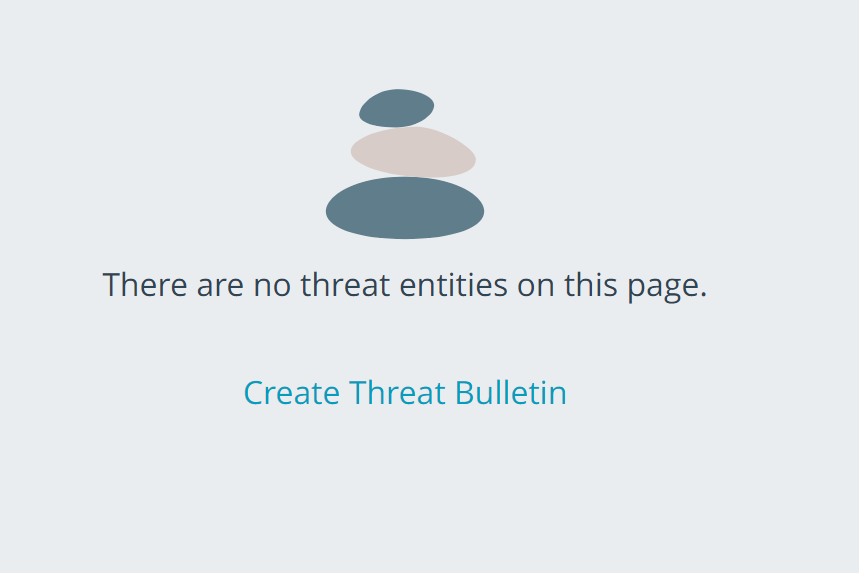
Note: You can also create Threat Bulletins when no entities are detected by Anomali Copilot.
-
Click Create Threat Bulletin.
The new Threat Bulletin has been created. You are redirected to the Threat Bulletin details page in edit view. See Editing Threat Bulletins for more information.
If new observable values were included in the Threat Bulletin you created, an import session window is displayed.
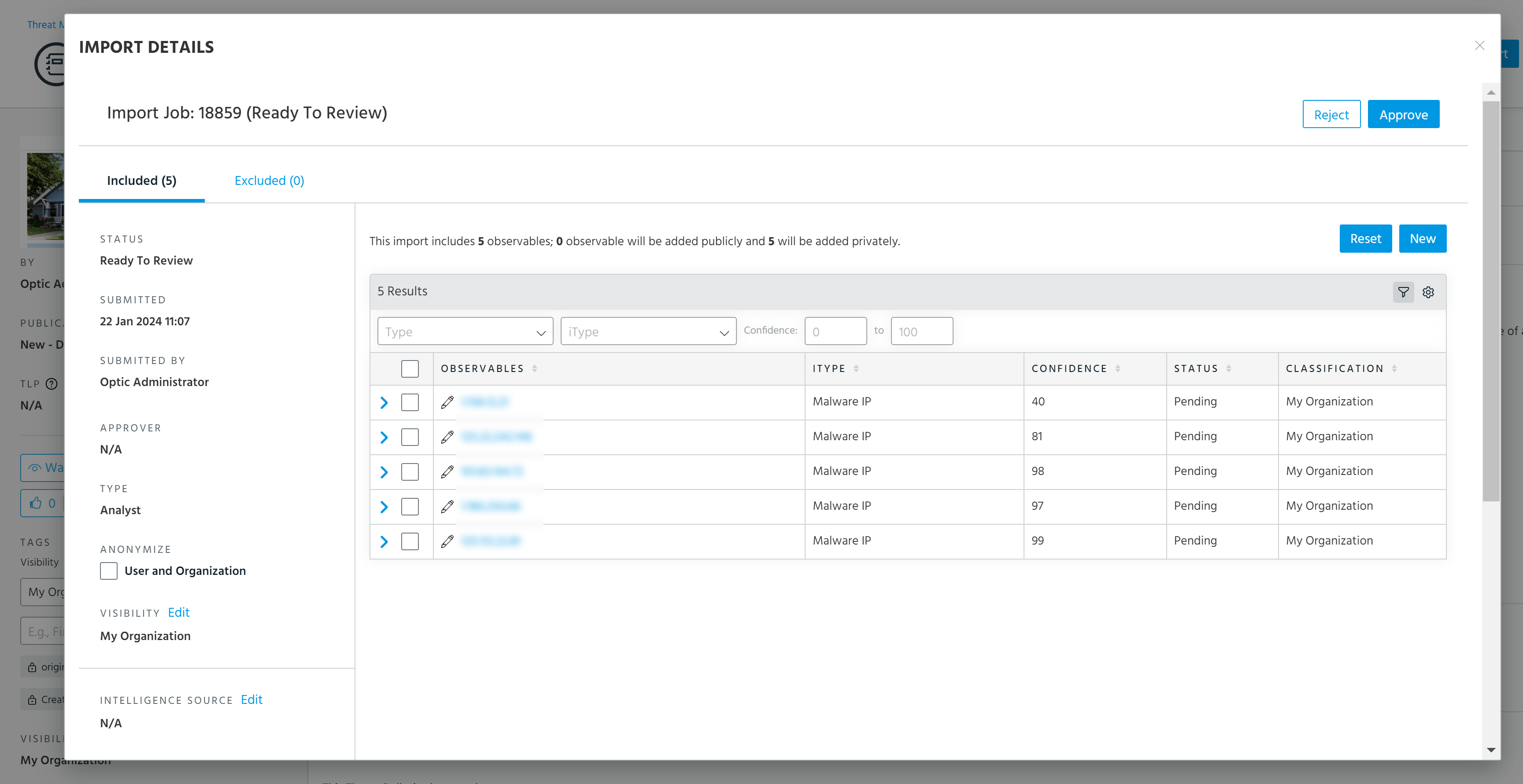
See Approving Import Jobs for more information.
The entities you selected are automatically associated with the new Threat Bulletin.
Creating Investigations from Anomali Copilot
To create an Investigation from Anomali Copilot:
- After scanning a page, click Investigate on the Copilot window.
-
Select the entities you want to include in the Investigation. You can also use the filters to select all entities of a particular highlight type.
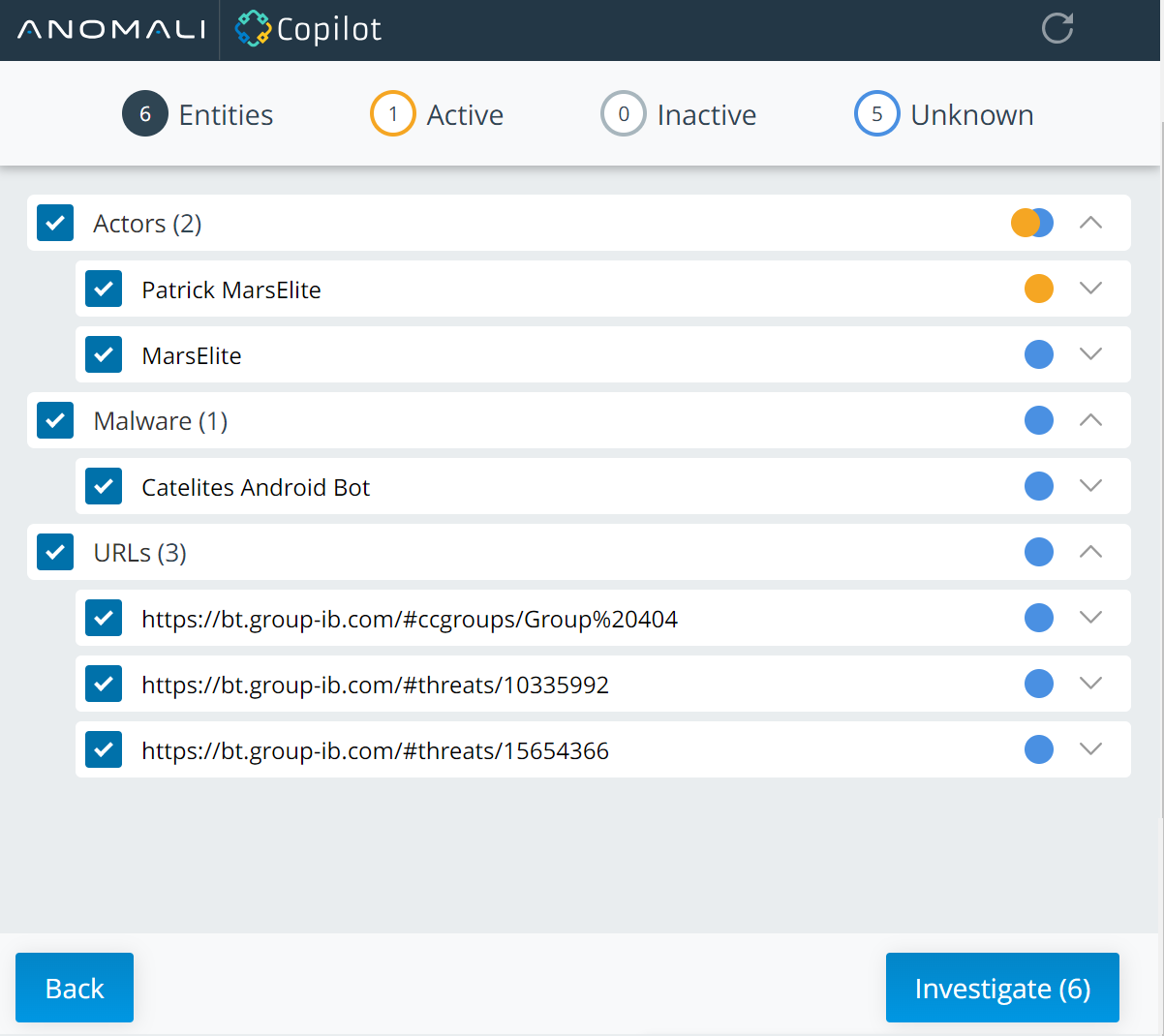
- Click Investigate.
-
If you want to add the entities to an existing Investigation:
- Select Add to Investigation.
-
Use the Search function to locate the Investigation of interest. You can also click Show Filters to filter Investigations by Last Modified date and Reporter.
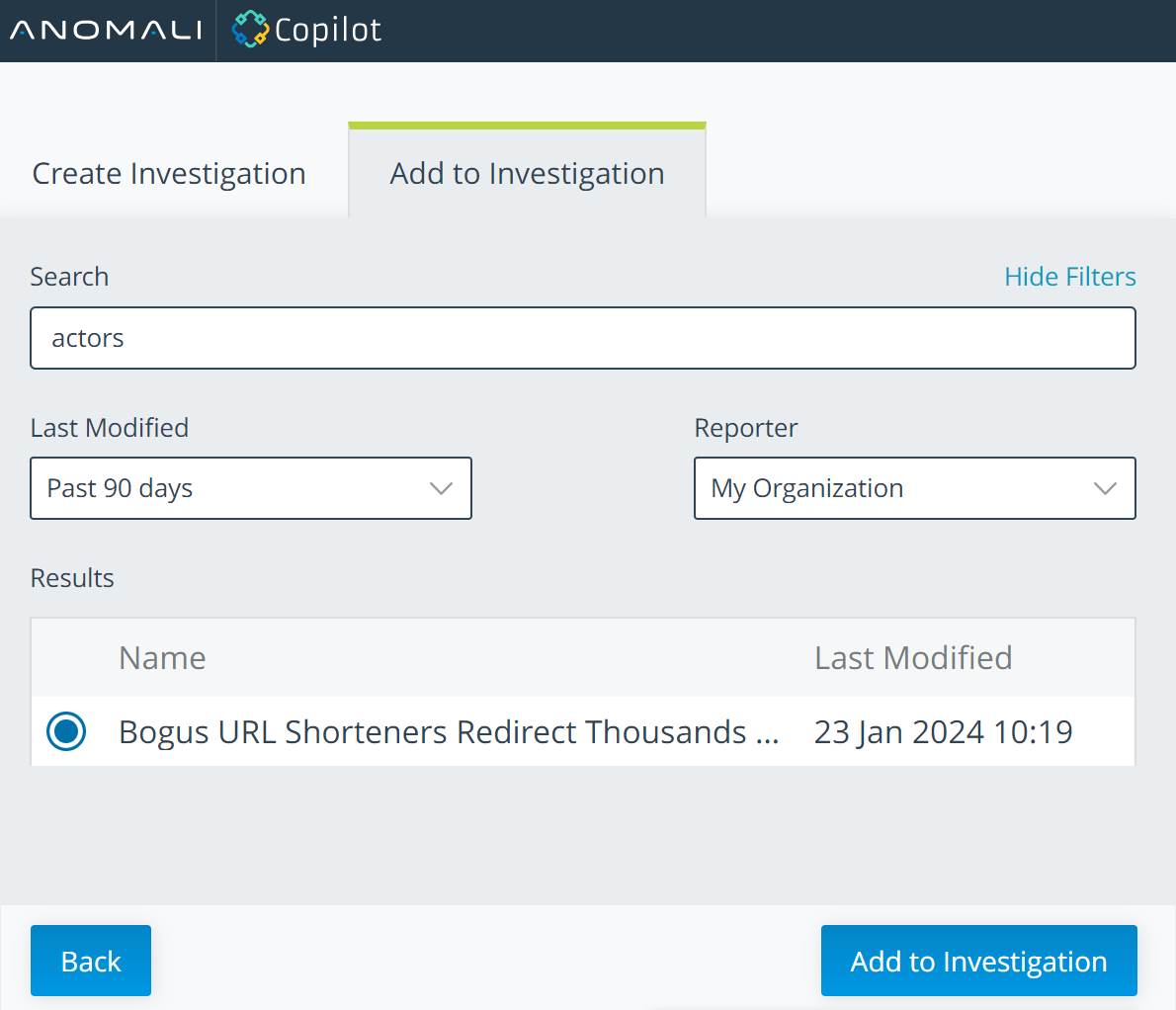
- Select the Investigation of interest from the Results list.
- Click Add to Investigation.
Anomali Copilot displays the following message when it finishes adding the entities: Your investigation has been created.
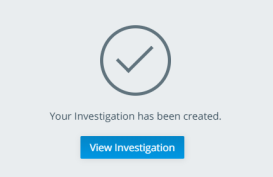
Click View Investigation to view the updated investigation in ThreatStream.
Note: ThreatStream may not complete grouping entities on the chart view of the Investigation if you attempt to open the Investigation before Copilot displays this success message. If you close the Copilot window before the success message is displayed, Anomali Copilot sends you a browser notification, such as the following:
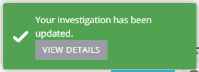
Click View Details to view the Investigation.
OR
If you add the entities to a new Investigation:
-
Select Create Investigation.
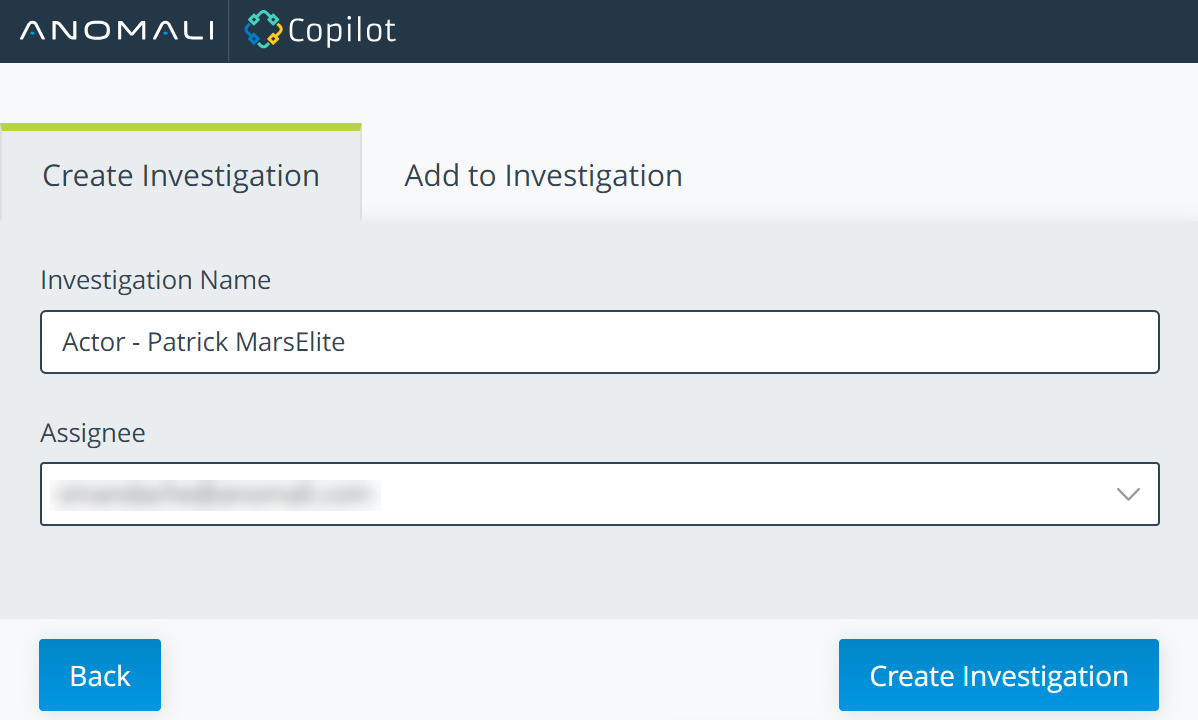
- Confirm the Investigation Name. The name of the scanned page is automatically populated.
- Select an assignee for the Investigation.
- Click Create Investigation.
When investigation creation is complete, Anomali Copilot displays the following message: Your investigation has been created.
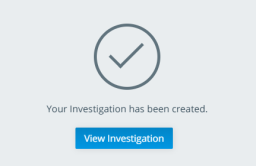
Click View Investigation to view the investigation in ThreatStream.
Note: ThreatStream may not complete grouping entities on the chart view of the Investigation if you attempt to open the Investigation before Copilot displays this success message. If you close the Anomali Copilot window before the success message is displayed, Copilot sends you a browser notification, such as the following:
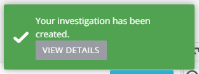
Click View Details to view the Investigation.
Creating Import Sessions from Anomali Copilot
To create an import session from Anomali ThreatStream:
- After scanning a page in ThreatStream, click Import on the Anomali Copilot window.
-
Select the observables you want to import.
Note: Select the Unknown filter to select all observables highlighted by Anomali Copilot that are currently unknown to ThreatStream.
-
Click Import.
You are redirected to the import review screen. See Approving Import Jobs for more information.